
If you want to make a Canva digital scrapbook and you already have an account, you have most of what you need. Canva runs in a browser, it handles layers, photos and text on one page, and the free tier goes a long way before you hit a wall. For a lot of hobbyists it’s the easiest place to start.
This is a practical walk through building a Canva digital scrapbook page from a blank canvas, plus where Canva helps and where it gets in your way once you want a page that looks properly finished.
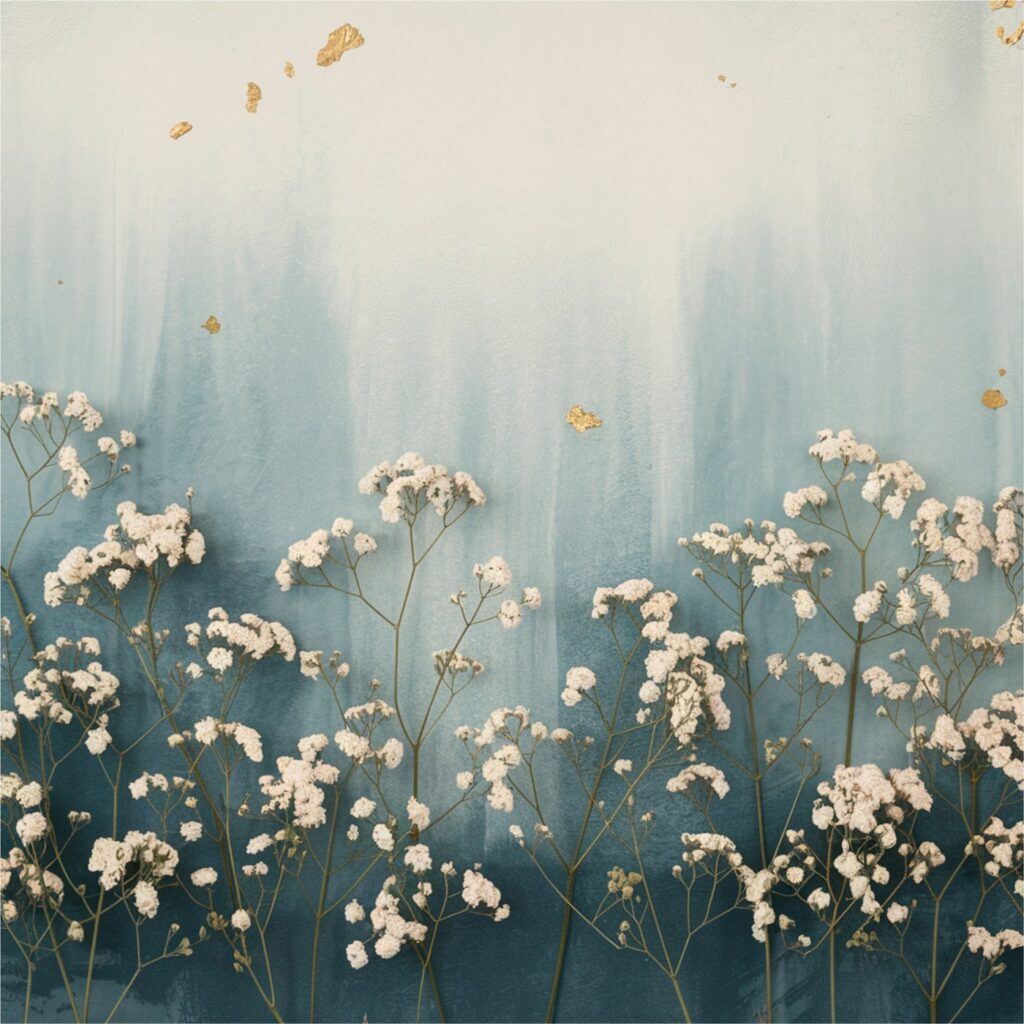
Our digital scrapbook papers upload to Canva like any other image, ready to use as page backgrounds.
Table of Contents
Why a Canva digital scrapbook is a good place to start
Scrapbooking in Canva works because the tools are already the right shape for the job. You drag a photo onto the page, drop it into a frame, then stack text and stickers on top. No file exporting between apps, no fiddly setup. Everything saves as you go, and you can pick the page back up on another device.
You can also work at your own pace. Save a half-finished page, come back the next day, and nothing is lost. That matters when you’re fitting scrapbooking around everything else. A few things it does well:
- Free-transform photos, resize and rotate anything with a corner handle.
- Frames and grids that crop a photo to a shape without you masking anything by hand.
- A built-in library of shapes, lines and text styles, so a page comes together fast.
- Transparent PNG support, which is the whole reason you can layer decorative elements over a background.
Where it gets limited: the free sticker and background library is generic, so lots of Canva digital scrapbook pages end up looking the same. Real texture and hand-drawn detail are thin unless you bring your own artwork in. And once you want a themed page with matching colours across every element, sourcing all those pieces one by one inside Canva is slow.
Set up your page and background
Pick a canvas size
Start a new design with a custom size. A square around 3600 x 3600 pixels is a safe size for a Canva digital scrapbook page. It stays sharp on screen and gives you room to zoom in later. If you plan to post to a phone-shaped feed, a portrait size works too. The page lives on a screen, so you’re choosing pixels, not a paper size.
Drop in a background paper
Upload your background paper through the Uploads panel, then drag it onto the canvas and pull the corners until it covers the whole page. Send it to the back so everything else sits on top. If you’re using one of Canva’s own backgrounds, search by colour rather than by keyword. You’ll get closer to the palette you actually want.
Build the page, layer by layer
Add photos into frames or a grid
Open the Elements panel and search for “frame”. Drag one or two onto the page, then drag a photo straight into each frame and it crops to fit. Double-click to nudge the photo around inside the frame until the crop looks right. If you want several photos sitting together in a block, use a grid instead. It keeps the spacing even without you measuring anything.
Layer your transparent PNG elements
This is where a Canva digital scrapbook page starts to feel like the real thing. Upload your decorative pieces, flowers, leaves, ribbons, little painted shapes, and drag them onto the page one at a time. Because they’re transparent PNGs, they sit over the background and photos cleanly. A few habits that help:
- Tuck a couple of elements slightly behind a photo frame so it looks layered, not pasted on. Right-click and use Send Backward to set the order.
- Vary the size. One larger element as an anchor, a few smaller ones scattered around it.
- Let some pieces run off the edge of the page. It reads as more relaxed than everything centred and tidy.
- Group elements you’re happy with, so you can move a cluster as one.
Add your text and journaling
Add a heading for the date or the moment, then a smaller text box for a line or two of journaling. Keep to two fonts at most, one for the title and one for the body. Match the text colour to a shade already in your background or your elements and the whole page pulls together. If a script font sits over a busy patch of background, drop a soft shape behind it so the words stay readable.
Download and share
When the Canva digital scrapbook page is done, use Share, then Download. Choose PNG for the best quality on screen, or JPG if you want a smaller file for posting. Tick “transparent background” only if you’ve deliberately left the paper off and want the page to sit on something else later.
From there the page is yours to post to a feed, drop into a photo book app, keep in an album on your phone, or send to family. It stays a screen file the whole way through.
Putting your Canva digital scrapbook together
The steps are simple once you’ve done a page or two. The slow part is finding backgrounds and elements that match, in colours you actually like, without your pages looking like everyone else’s Canva template. If you’d rather not build every element from scratch, a themed set like the Ethereal Meadow digital scrapbook bundle gives you matching papers and transparent PNG pieces you upload straight into Canva, so a coordinated page takes minutes instead of an afternoon of hunting.
Start your Canva digital scrapbook with one page. Background, a photo or two, a handful of elements, a line of text. Once that first one clicks, the rest come quickly, and you’ll work out your own way of doing it.