
Put the same photo on two papers before you add any other detail. Keep the photo the same size and in the same place. Choose the paper that makes the part you care about easy to see. If you prefer a busy paper, try a plain border behind the photo.
You can do this with loose prints, or with layers in a digital page. Start with papers you already own. The examples below use two released Forest Bark papers and one public-domain photo.
You can browse our digital scrapbook papers in one place.
Compare the paper, then try a mat
These are digital layout examples, not printed tests. The photo, its size and its place stay the same in all three. Only the paper or the cream border changes.
A. A detailed paper without a border
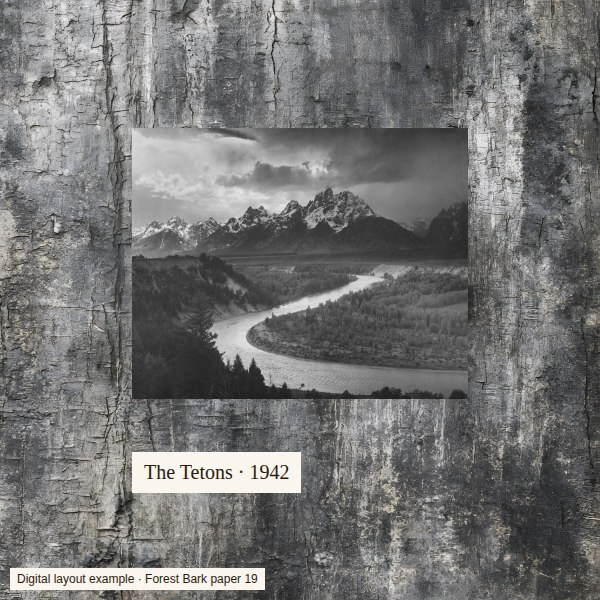
The bark adds detail around an already detailed scene. The photo is still visible, but its dark lower edge meets more dark marks. If your eye keeps moving to the bark, try the next version.
B. The same photo on a softer paper
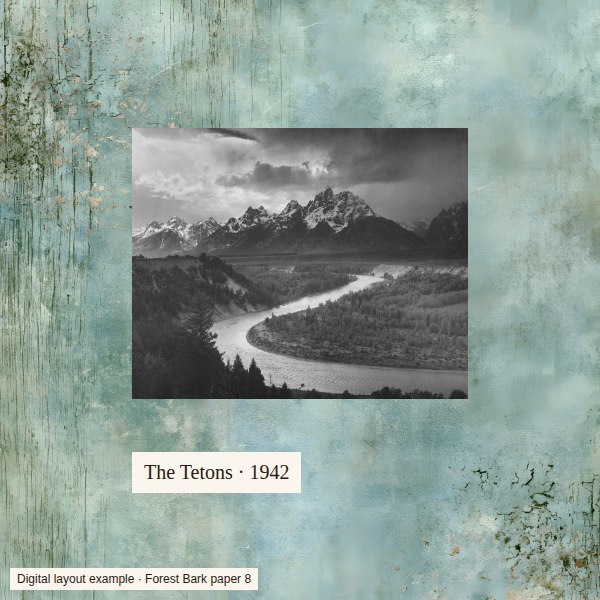
This sheet has less detail next to the photo. It is one option when you want a clear edge without adding a border. A plain sheet could serve the same purpose.
C. Keep the detailed paper and add a mat
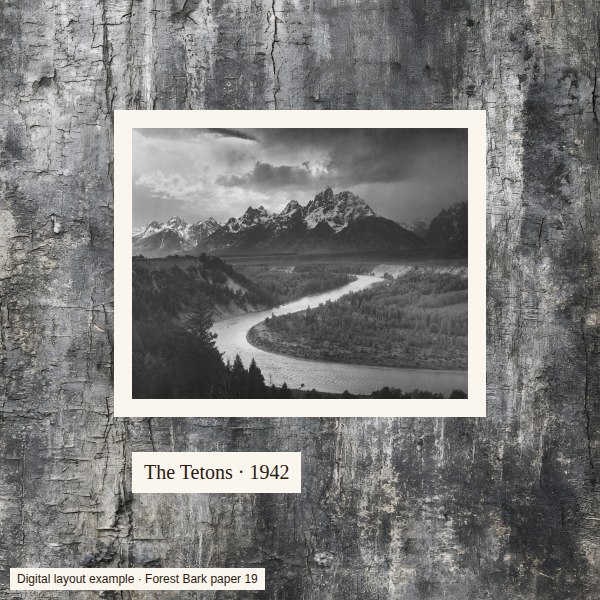
A mat is a piece of paper, or a digital shape, behind a photo. It extends past the edges to form a border. Here, cream gives the photo a clear edge on all four sides. Try a dark mat too if cream draws more attention than you want.
The paper numbers refer to the file names in the Forest Bark square paper set. Photo: Ansel Adams, The Tetons and the Snake River, 1942. The USGS source identifies it as public domain. It is used here to show layout choices and is not included in the paper kit.
Try the comparison with your own photo
- Pick the part you want people to notice. It might be a face, a view or a small detail.
- Place the photo on two papers. Keep its size and position fixed so you can judge the paper change.
- Look at the photo’s edges. Does a dark edge merge into a dark patch? Does a pale edge disappear against a light sheet? Try another area of the paper or add a mat.
- Add a short note on a plain patch. In the examples, the date sits on cream. Check that you can read your words at the size you will view or print the page.
- Choose before you glue or export. Look at the whole page, then check the photo and writing up close.
Colour and pattern are choices, not rules
A bright paper can suit a bold page. A plain background can be a finished choice. A straight strip or an even split between two papers can work too. Choose the version that makes the part of the photo you care about easiest to see.
For a colour photo, try one paper that repeats a colour in the image and one plain cream or grey paper. Compare them without changing the photo. These black-and-white examples show edges and texture; they do not test colour matching.
Use the square papers shown here
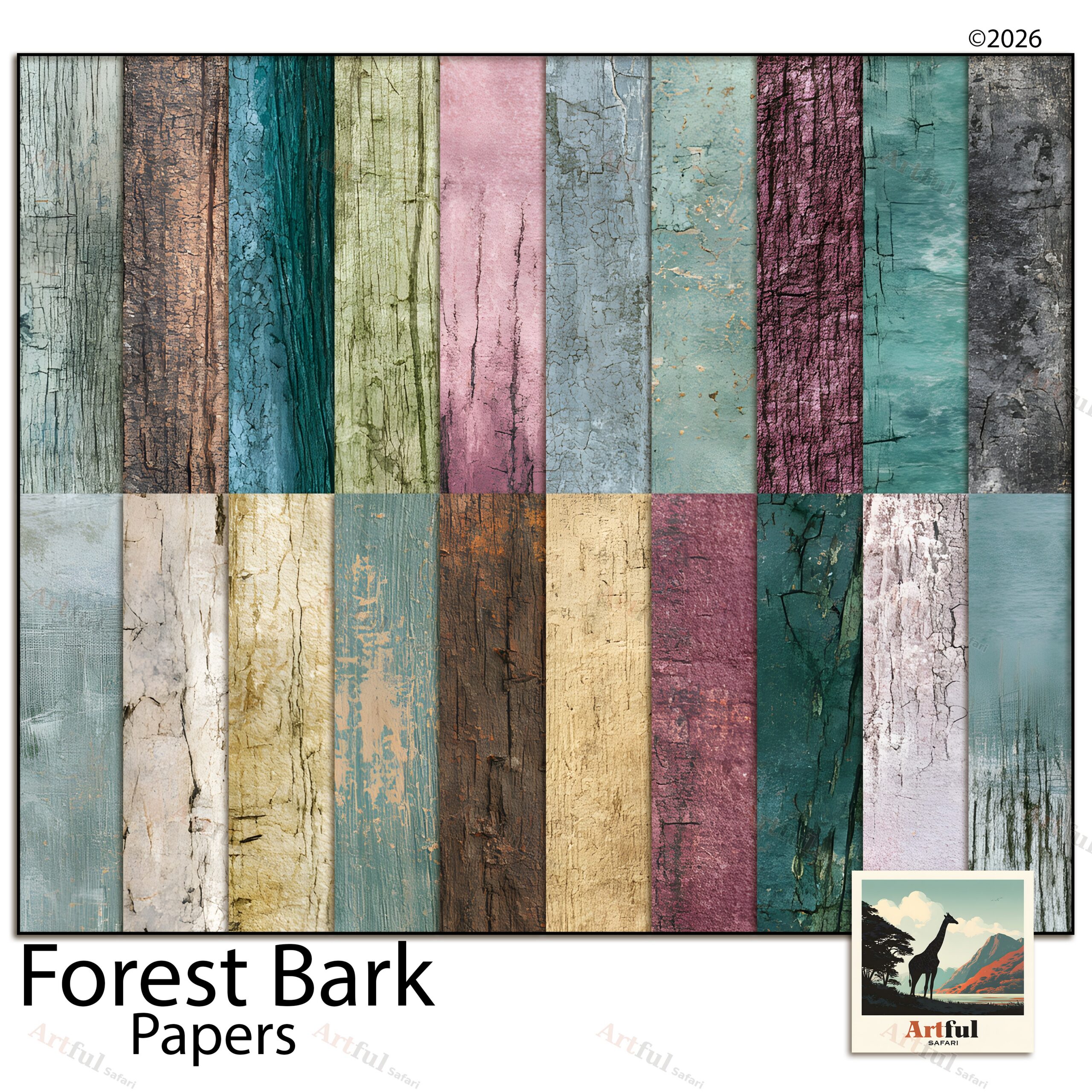
The Forest Bark square scrapbook paper kit contains 20 JPG papers at 3600 × 3600 pixels, sized for 12 × 12 inches at 300 DPI. Helene designs the papers. This is a digital download; no printed paper or sample photo is supplied. Check the product page for the current price and download details.
If you plan to print, a full 12-inch square will not fit on Letter or A4. Use the paper-size and print-settings guide to choose between fitting the whole design and keeping its intended size.