To print junk journal papers, first choose the sheet size in your print settings. Then decide what matters most: keeping the whole design, keeping its exact size, or putting ink right to the edge. Those are three different choices.
Actual size does not turn on borderless printing. It tells the app to keep the file’s page size. A printer that leaves a white edge can still leave one at Actual size.
This guide shows the choices with diagrams. They explain the settings; they are not photos of test prints or screenshots of a printer menu. Your printer may use different names for its controls.
Choose how to print your junk journal papers
Fit: keep the full page design
Choose Fit in Acrobat when you want the PDF page to sit within the space the printer can use. That space can be smaller than the sheet. The page may get smaller or larger, and white space may remain.
This is a useful starting point for a background you plan to trim. Check the preview before printing. A small tag or card can change size too, so Fit may be the wrong choice when a piece must match a set measurement.
Actual size: keep the file’s page size
Choose Actual size when size matters, such as a card meant to fit a pocket. Check that the file page fits your paper and that the parts you need sit inside the area the printer can reach.
Content that falls outside that area may be cut off. A square design will not become a Letter-shaped page at Actual size. Measure the test print before making more copies.
Adobe explains these controls in its guide to PDF print size.
Borderless: aim for ink to the edge
Borderless is a printer setting. Check your printer manual for the paper sizes and types that support it. Some printers offer it only for certain photo papers or sizes.
The printer may enlarge the image to cover the sheet. That can cut off details near the edge. Epson explains this in its guide to cropped edges in borderless prints.
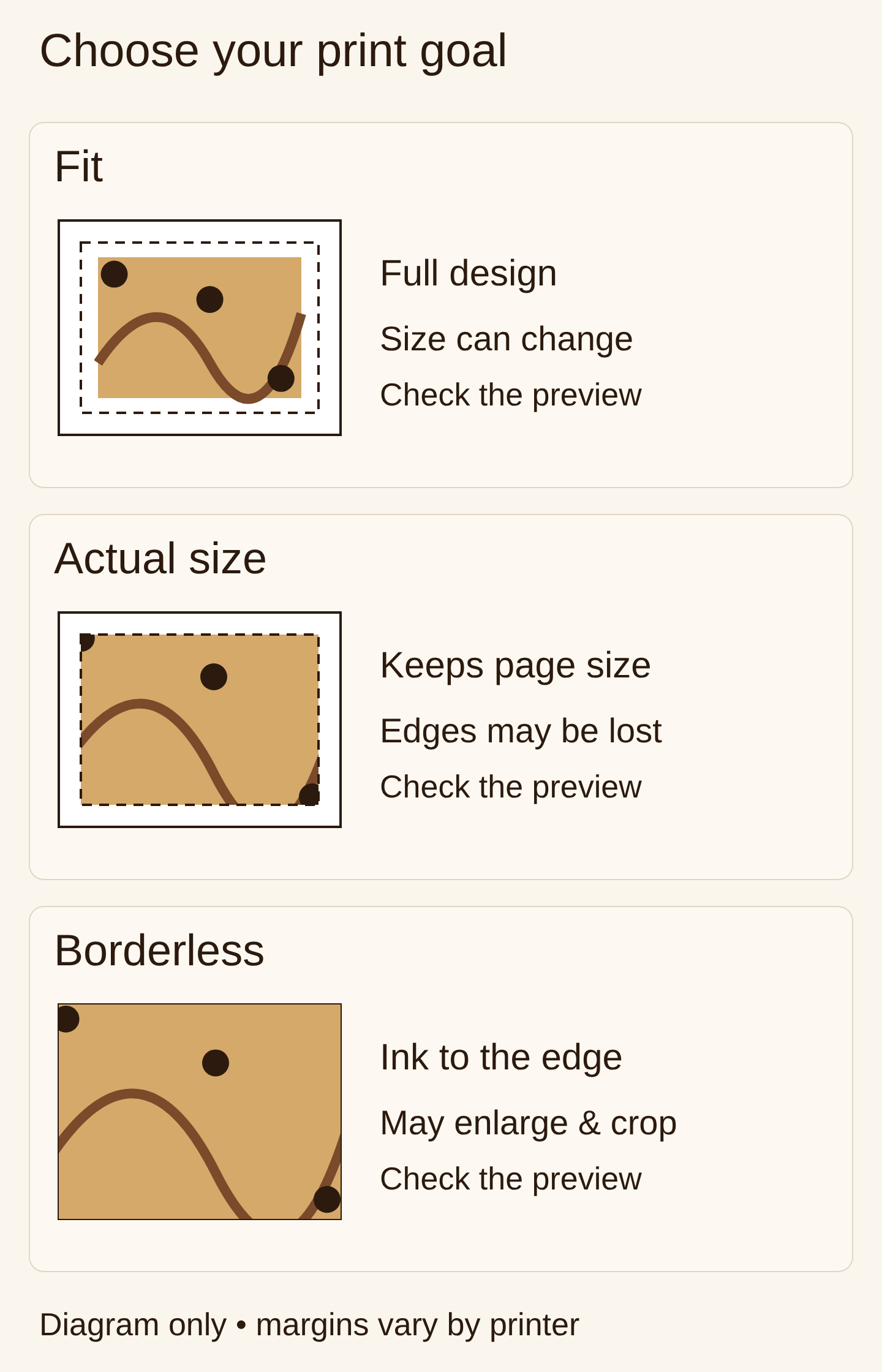
Diagram: the dashed line marks the area a printer can use. Its size varies by printer. Borderless needs support for the paper you load.
Printing to the edge is sometimes called full bleed. If your printer cannot do it, print with a white edge and trim it off. The sheet you keep will be smaller. To keep a set final size, you may need a larger sheet and a printer or print shop that can handle it.
A4 and Letter are different shapes
US Letter is 8.5 × 11 inches. A4 is 210 × 297 mm, or about 8.27 × 11.69 inches. Turn both sideways and A4 is wider and shorter than Letter. Adobe lists the dimensions in its A4 paper guide.
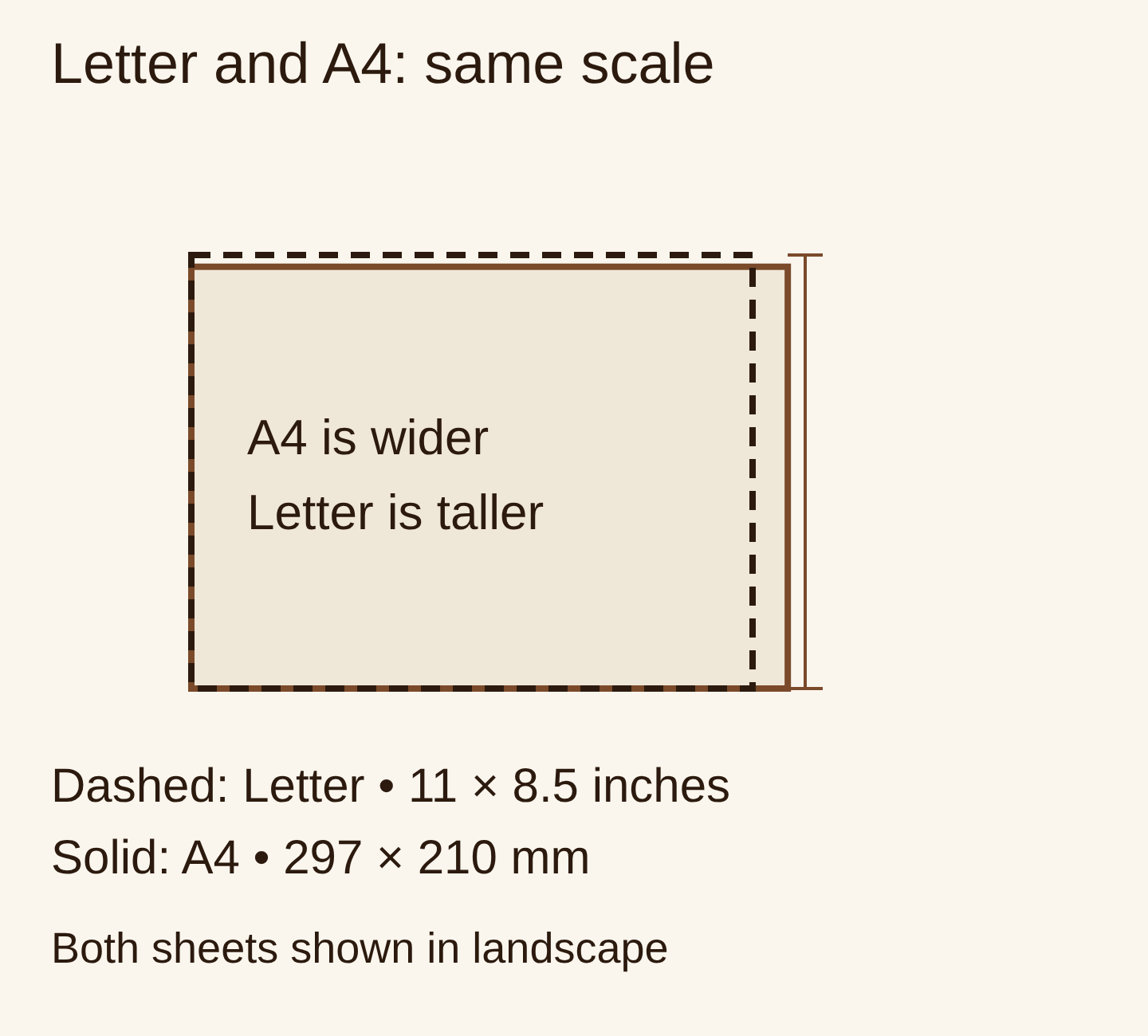
The outlines use the same scale. Neither shape can fill the other without space left over, a crop, or a change in shape.
Load the paper you have, then select that same size in the printer settings. If the file is Letter and the sheet is A4, use the preview to check what Fit or Actual size will do. Do not assume the small difference will leave every edge intact.
A square paper also needs a choice. You can fit the whole square on the sheet and trim the spare white space. Or crop the design to fill a rectangle, knowing you will lose part of it.
Check the file, not only the image’s pixel count
For a PDF, check the page size shown in the file or print preview. For a JPG, check the intended print size in the product listing and in the app you use to print it.
A pixel count alone does not set the printed size. For example, an image that is 3300 × 2550 pixels works out to 11 × 8.5 inches at 300 pixels per inch. A print app can still scale it. Check the size and crop shown in its preview.
Print one test page before the set
Use the downloaded file, rather than a shop preview image. If the kit gives you a PDF and you want to use the Acrobat controls above, open that PDF in Acrobat or Reader. A photo app or browser may offer different controls.
- Load one sheet. Use a paper type your printer supports. Match the paper size and type in its settings.
- Select one page. Pick a design with some detail near an edge so you can see whether anything is lost.
- Choose your goal. Use Fit for the full design, Actual size for a set size, or supported borderless settings for ink to the edge.
- Look at the preview. Check the direction of the page, the crop and the white space. Choose portrait or landscape to suit the design.
- Print and check it. Let the ink dry as the paper maker advises. Look at the edges and measure any part that must fit a pocket or frame.
Test on the paper you mean to use for the journal. Its surface can change how the colours look. Check the printer’s paper-weight limit before feeding thicker stock.
If the test looks right, use those settings for the rest of the pages that share its size. Check again when the next file uses a different page size or shape.
Fix the result you see
There is a white edge. Check whether it is built into the design, left by Fit, or required by your printer. Actual size will not remove a printer’s margin. Keep and trim the edge, or check for a supported borderless option.
The edge of the design is missing. Check for Actual size on a page that is too large, a photo app’s fill/crop option, or borderless enlargement. Try Fit if keeping the full design matters more than its size.
A card came out too small. Check whether Fit shrank it. Try Actual size with a sheet that can hold the full page, then measure a new test.
The page faces the wrong way. Match portrait or landscape to the design. Check the preview again after changing the paper size.
Choose a texture for your next page
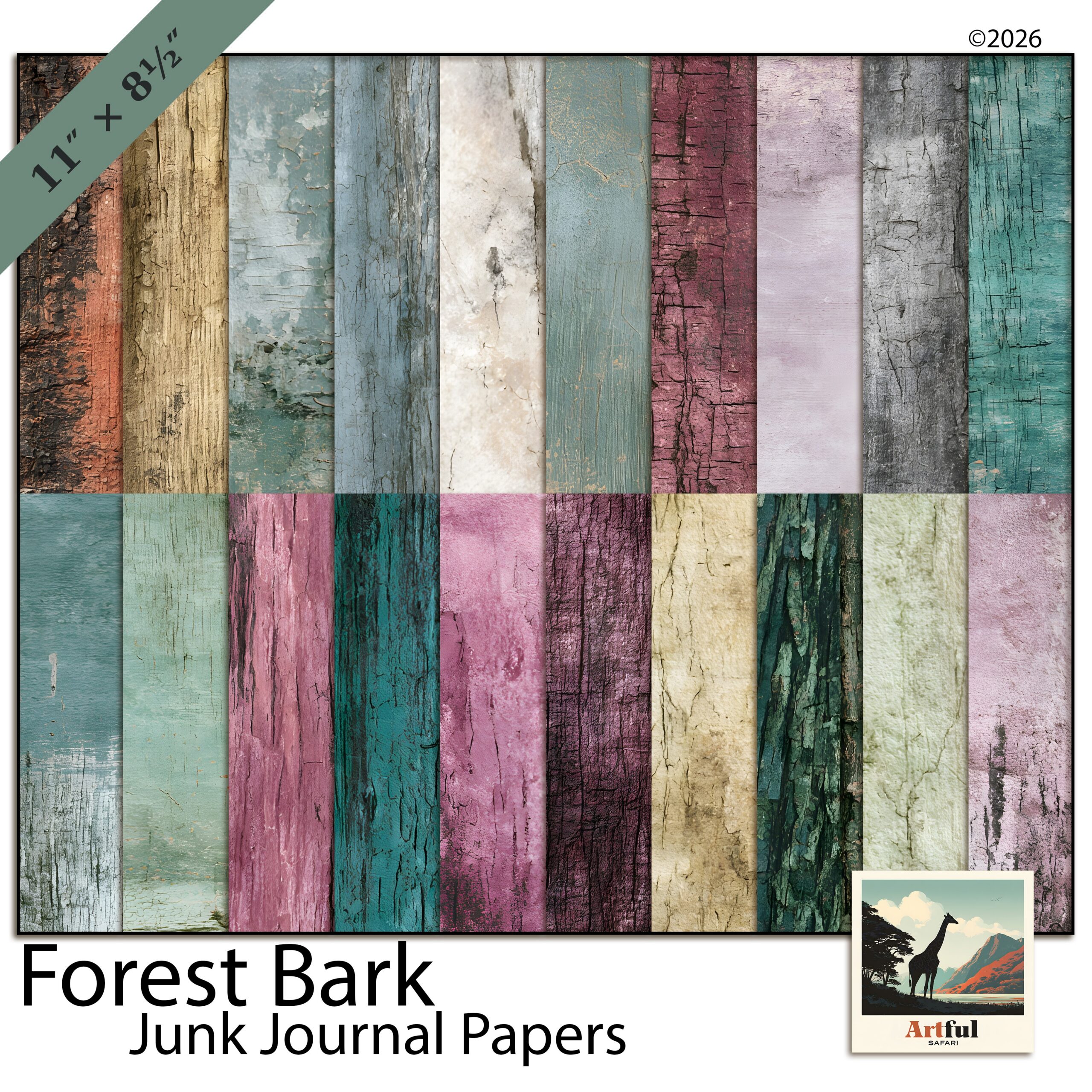
The Forest Bark junk journal papers are the texture set linked in this guide. Check the listing for the current files and page sizes, then test one page with the steps above.
Once the print is ready, use it under a photo or a piece of writing. Our guide to choosing a background paper shows what to look for when the pattern and photo compete.