
The fastest way to sort digital scrapbook supplies is one parent folder, split first by type (Papers, Elements, Frames, Alphabets, Templates) and then by theme inside each, with consistent names and a preview image in every folder. That structure scales from ten kits to two hundred without you ever losing a paper again.
The mistake most people make is sorting by purchase date or by where they downloaded it. You never search by “the thing I bought in March”, so do not file it that way.
Table of Contents
Should you sort by theme or by type first?
Start with type at the top level, then theme underneath. You reach for “a frame” or “a floral paper” far more often than you reach for one specific kit, so type belongs first.
If you only ever build albums around one kit at a time, flip it: theme first, type inside. Both work. The rule that matters is pick one and never mix the two halfway down the tree.
Why does mixing hurt? Because a half-typed, half-themed tree means every search becomes a guess. Was that floral frame filed under Frames, or under the Spring kit, or under Florals? When the logic is consistent, you always know where to look before you even open the folder, and that single second of certainty is the whole point of a filing system.
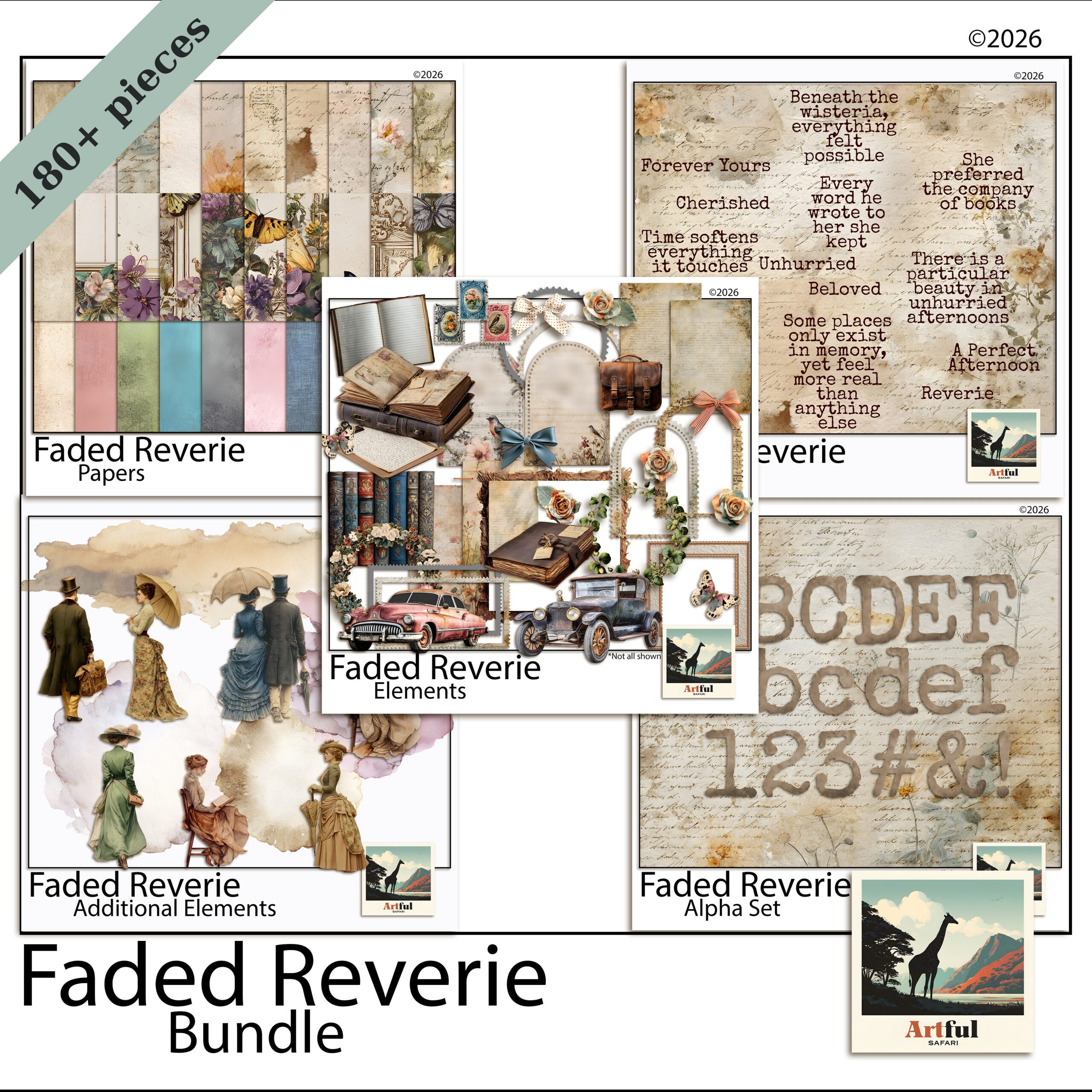
A folder structure for digital scrapbook supplies
Here is a tree that holds up as your collection grows. Copy it exactly and you can drop any new kit straight in.
Digital Scrapbooking/
  00_Previews/            (one cover image per kit, for fast browsing)
  Papers/
    Faded-Reverie/
    Enchanted-Hours/
  Elements/
    Floral/
    Botanical/
  Frames/
  Alphabets/
  Templates/
  _Inbox/                 (new downloads land here until filed)
  _Backups/
The _Inbox folder is the part people skip and then regret. Every new download lands there first. Once a week you file it properly. That one habit stops the desktop pile-up.
Notice the underscores on _Inbox and _Backups. A leading underscore or the 00_ prefix forces those folders to the top of an alphabetical list, so the things you touch most often are never buried halfway down. It is a small trick that pays off every single time you open the folder.
How to handle bundles versus single kits
Bundles are where filing digital scrapbook supplies usually breaks, because one download contains papers, elements, frames and an alphabet all at once. Do not leave them zipped together in a “Bundle” folder. Split the contents into your type folders the same as anything else, and keep the original download in _Backups in case you ever want the whole set again.
Name each split piece with the kit name so they stay findable as a family, for example enchanted-hours-paper-01 and enchanted-hours-frame-oval. The shared prefix means a quick search still pulls the whole kit back together when you want it.
How should you name files and folders?
Names are what make digital scrapbook supplies searchable. Be boring and consistent. Lowercase, hyphens not spaces, theme first, then what it is.
faded-reverie-paper-floral-01.pngenchanted-hours-frame-oval.pngwoodland-alpha-uppercase-A.png
Spaces and special characters break links in some apps and make batch-renaming painful. Hyphens never do. Number with leading zeros (01, 02) so files sort in the right order instead of 1, 10, 11, 2.
You do not have to rename everything by hand. Most operating systems and free tools batch-rename a whole folder at once: select all, apply a prefix, add sequential numbers. Spend ten minutes setting up the pattern on your biggest folder and the rest follows quickly. The aim is not perfection, it is a name you can guess later without opening the file.
One more rule that saves grief: never rename a file after you have used it in a saved layout. Apps link to the original name, and changing it can leave a blank box where your paper used to be. Get the name right when you file it, then leave it alone.
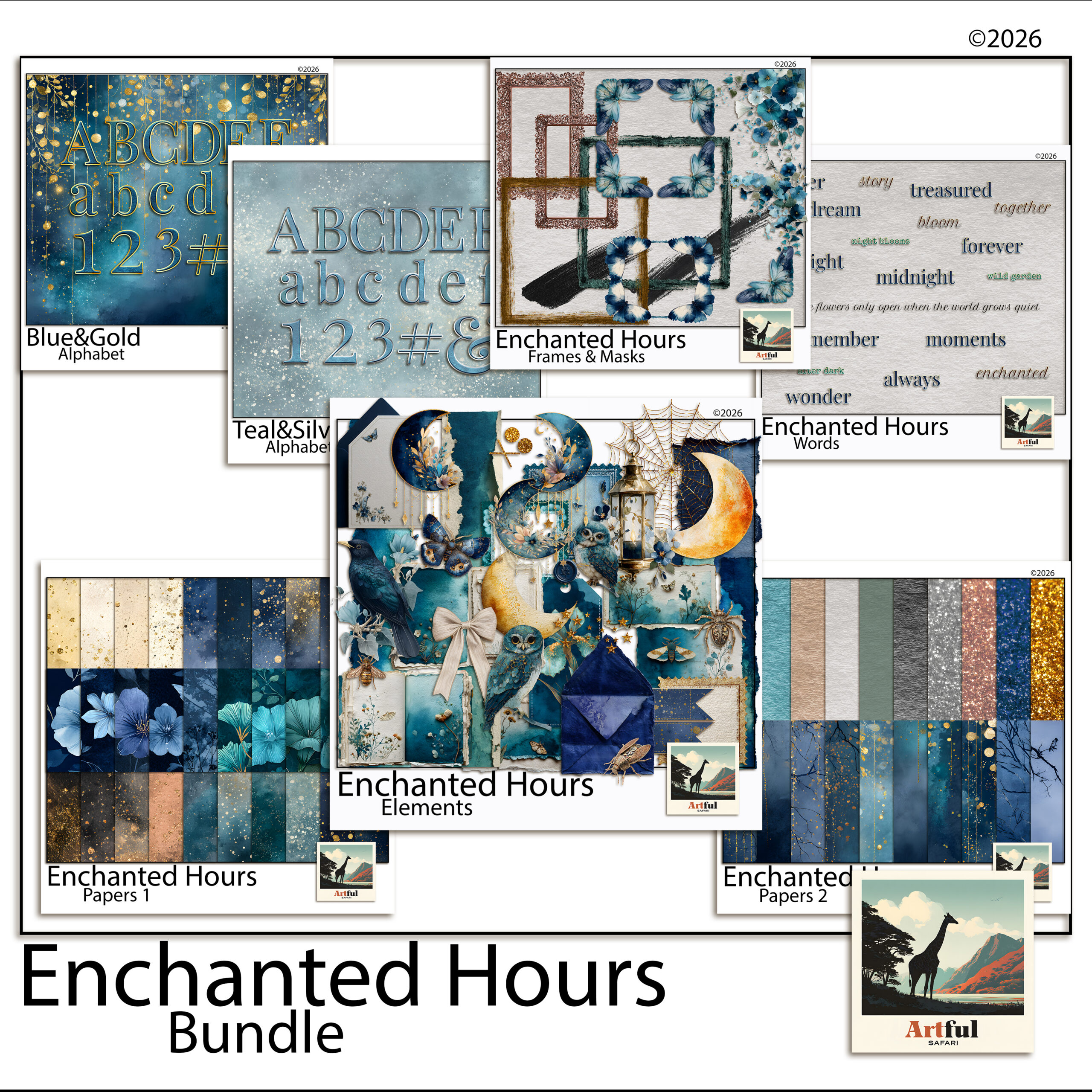
Why a preview image in every folder saves the most time
You cannot remember what is inside two hundred folders of digital scrapbook supplies by name alone. A single cover image per kit, all kept in 00_Previews and named to match the folder, lets you scan the whole collection visually in seconds.
Most kits ship with a cover or mockup image already. Drop a copy into your previews folder the moment you file the kit. Future you will thank present you.
Digital scrapbook supplies inside Procreate, GoodNotes and Canva
Folders on disk are half the job. The app you build in keeps its own library of digital scrapbook supplies, and the same logic applies there.
- Procreate: import papers as a Stack per theme and name each stack. Use the swatch palette feature to save a kit’s colours so titles and journaling match without guessing.
- GoodNotes: add papers as a custom template set, grouped by theme, so they appear in the same order every time you start a page.
- Canva: upload into folders inside the Uploads panel and prefix filenames with the theme, since Canva sorts and searches on the name you give it.
Whatever the app, mirror the theme names you use on disk. Two different naming systems for the same kit is how things get lost.
Backing up so one dead drive does not wipe everything
Digital scrapbook supplies feel safe until a drive fails. A backup in two places is the floor, not the ceiling.
- Working copy on your main machine or tablet.
- Cloud copy in Drive, iCloud or Dropbox, synced automatically.
- Cold copy on an external drive you update monthly.
Re-downloadable shop purchases give you a fourth safety net, but do not rely on it. Stores change and links expire. Keep your own backup.
How often to prune so the library stays usable
A library of digital scrapbook supplies only stays searchable if it stops growing in the wrong places. Two things bloat over time: duplicates and kits you downloaded but never click.
Once a quarter, do a short pass. Delete obvious duplicates, the ones where you saved the same paper twice from a bundle and a single kit. Move kits you have not touched in a year into an _Archive folder so they are out of your daily view but still backed up. You are not throwing anything away, just clearing the desk.
Resist the urge to rename everything every time you find a tidier system. Pick the structure once, live with it, and only adjust when something genuinely breaks. Constant reorganising costs more time than it ever saves.
| Habit | How often | Why it matters |
|---|---|---|
| Clear the _Inbox | Weekly | Stops downloads piling into chaos |
| Add a preview image | Every new kit | Visual browsing beats reading names |
| Update cold backup | Monthly | Survives a drive failure |
| Prune duplicates | Quarterly | Keeps the library searchable |
New to all of this? My Digital Scrapbooking for Beginners guide covers the basics of working with kits before you have enough to need a filing system.
Key takeaways
- Type first, theme second (or commit to the reverse), and never mix the two midway down.
- Use an
_Inboxfolder and clear it weekly so downloads never pile up. - Lowercase, hyphenated, zero-padded names make search and sorting work.
- Keep a preview image per kit and back up your digital scrapbook supplies in two places.
Frequently asked questions
Should I organise digital scrapbook supplies by theme or by type?
Type first (Papers, Elements, Frames, Alphabets), theme inside each, because you usually search for a kind of supply rather than one specific kit. If you only build one kit at a time, theme first also works, as long as you stay consistent.
How do I name digital scrapbook files?
Use lowercase, hyphens instead of spaces, theme first then what it is, and zero-padded numbers like 01 and 02. This keeps files sorting in order and stops broken links in some apps.
How should I back up my digital scrapbook supplies?
Keep at least two copies in two places: a working copy on your device and an automatic cloud copy, plus a monthly external-drive copy if you can. Do not rely only on re-downloading from shops, since links expire.
What is the fastest way to find a paper in a big collection?
Keep one preview cover image per kit in a single previews folder, named to match. Scanning images visually is far quicker than reading hundreds of folder names.