40% off until 31 October on selected products·8 days left

Category: Scrapbooking Tutorials

How-to guides for digital scrapbooking and memory keeping – layouts, albums and techniques.

  • Scrapbooking vs Junk Journaling: 5 Differences + an Easy Way to Choose

    Scrapbooking vs Junk Journaling: 5 Differences + an Easy Way to Choose

    The short version: scrapbooking vs junk journaling comes down to intent. Scrapbooking builds tidy, photo-led pages that document a specific event, while junk journaling is looser, keep-everything collage where the photos are optional and the texture is the point.

    Both keep memories. One frames a picture, the other collects a feeling.

    If junk journaling sounds like your thing, browse our printable junk journal kits.

    Scrapbooking vs junk journaling: the core difference

    Both hobbies keep memories on a page, so people mix them up. The split is about what each one is built around.

    Scrapbooking is photo-led. You start with pictures of a real event and design tidy pages that hold them. Junk journaling is material-led. You start with paper, ephemera and texture, and the photos are optional. One documents, the other collects.

     ScrapbookingJunk journaling
    Built aroundPhotos and eventsPaper, texture, ephemera
    LookClean, designed, balancedLayered, busy, collaged
    PhotosThe main eventOptional extras
    StructurePlanned pages, a theme per eventFree-form, fill as you go
    Best forTrips, weddings, baby yearsDaily life, journaling, mixed media
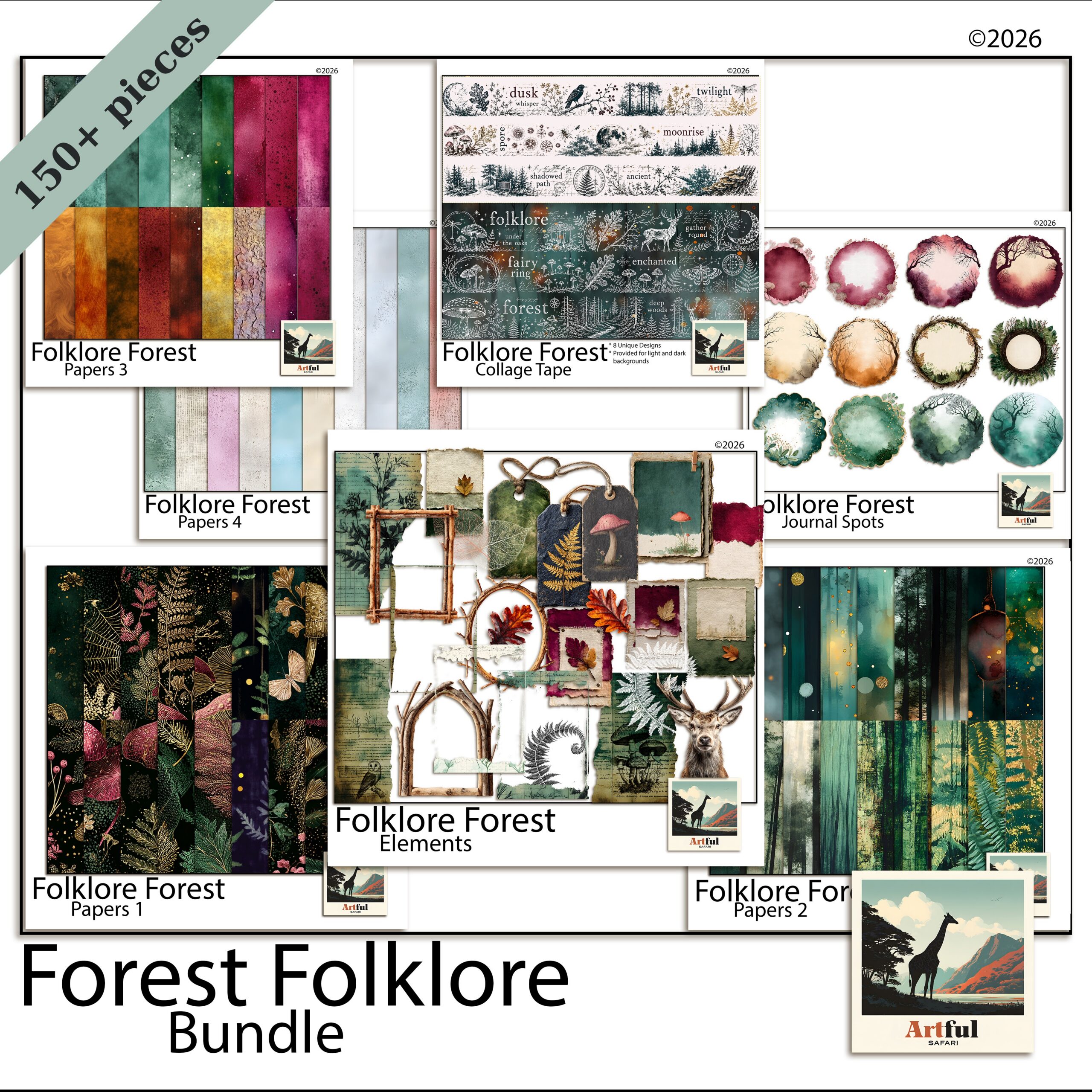
    Folklore Forest junk journal bundle showing scrapbooking vs junk journaling textures
    The collage-y, layered look I reach for when I want a junk journal feel: the Folklore Forest Botanical Junk Journal Bundle.

    What is scrapbooking, really?

    Scrapbooking is the older, more structured of the two. You pick photos from one occasion, choose a coordinated kit of papers and elements, and arrange a page so the eye lands on the picture first.

    The craft sits in the design choices: a focal photo, a few supporting shots, a title, a date, a line or two of journaling. White space matters. A good scrapbook page reads at a glance years later.

    Where digital scrapbooking fits

    Digital scrapbooking does the same job in Procreate, Photoshop or Canva. You drop photos onto a 12×12 canvas, layer papers and clipart, and export. Same design rules, no glue and no storage boxes.

    What is junk journaling?

    Junk journaling is bookmaking by collage. You build a book (or a digital book) from layered papers, tags, pockets, tickets, bits of old text and botanical cut-outs. The page is the project, not a frame for a photo.

    There is no rule that says a junk journal has to be neat. Pages overlap, edges peek out, and a finished spread looks like a stack of lovely things pressed flat. It suits people who like the making more than the planning.

    Digital vs physical junk journals

    A physical junk journal is a real book you glue and stitch. A digital one is the same aesthetic built in layers on a tablet, using junk journal papers and ephemera PNGs. If you are new to the whole idea, my What Is a Junk Journal? guide walks through it from scratch.
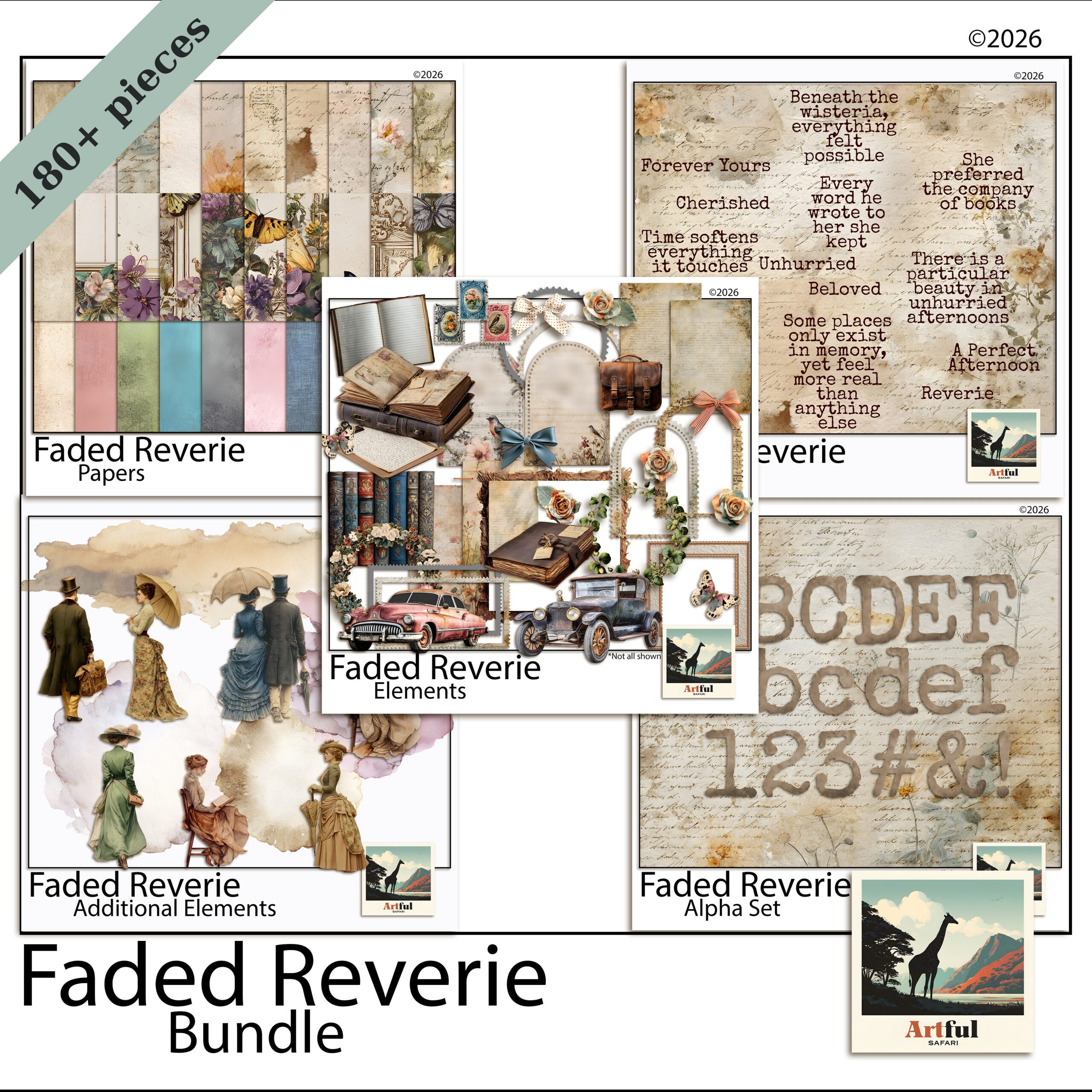
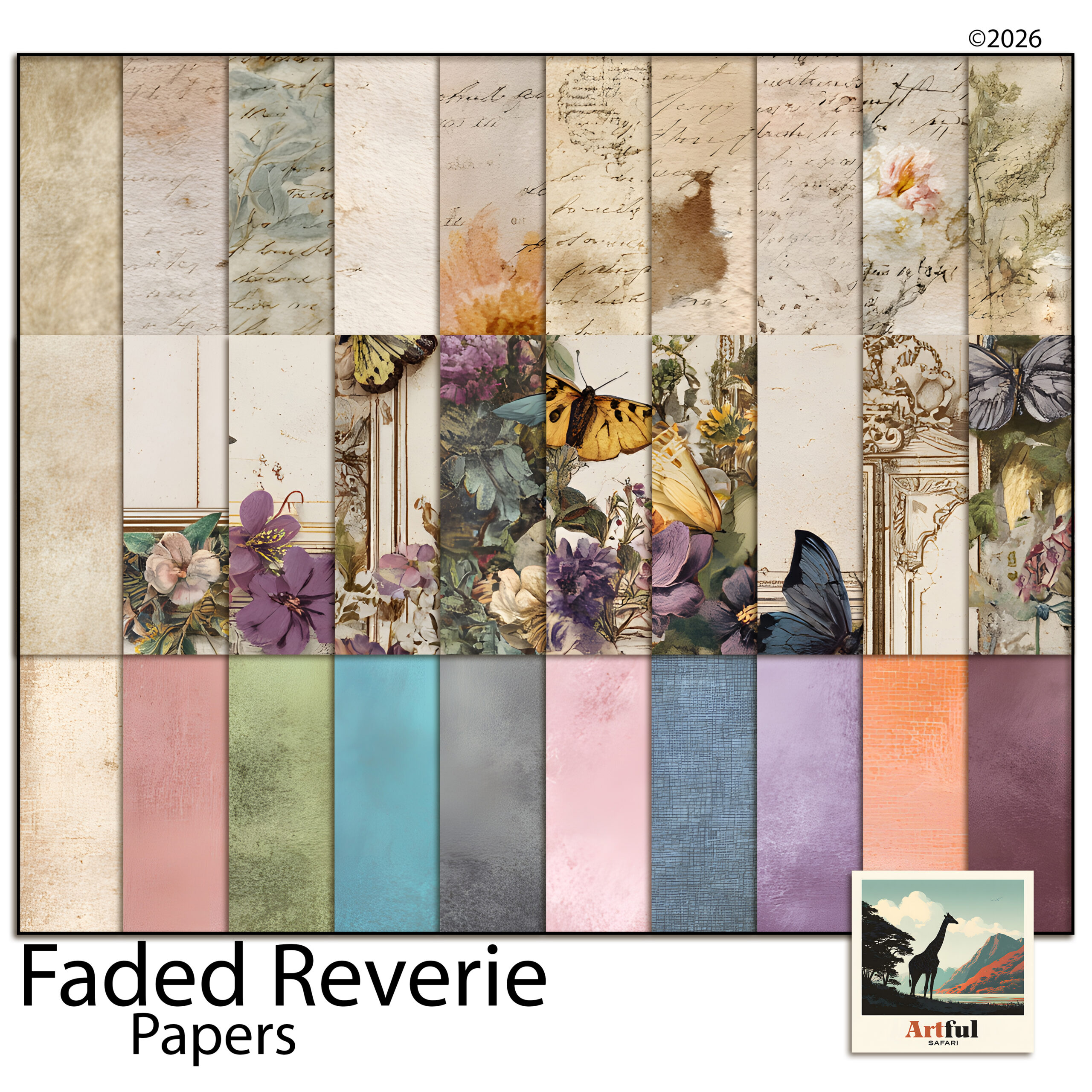
    Faded Reverie digital scrapbook bundle papers and elements
    For clean, photo-first scrapbook pages I use coordinated kits like the Faded Reverie Digital Scrapbook Bundle.

    Supplies and time: how they actually compare

    The kit lists overlap, but the way you use them differs.

    • Scrapbooking leans on coordinated paper packs, photo frames and alphabets for titles. You use fewer pieces per page, placed deliberately.
    • Junk journaling wants variety: aged papers, ephemera, tags, masks, stamps. You use more pieces per page, layered loosely.

    Time-wise, a single scrapbook page can take an hour because every element is a decision. A junk journal spread can come together faster because the layered, imperfect look forgives a lot. It can also become a rabbit hole if you love fussing with texture.

    What about cost and longevity?

    Cost splits the same way the supplies do. Scrapbooking, done physically, leans on fresh coordinated kits and acid-free papers chosen to last decades next to photos. Junk journaling reuses scraps, packaging and offcuts, so it can cost almost nothing once you have a glue stick.

    Going digital flattens both. One bundle prints or layers across dozens of pages, nothing yellows, and a backup means the work never gets lost to a spilled cup of tea. If you are weighing the formats more broadly, this sits alongside the wider digital-versus-physical question every memory keeper hits eventually.

    Scrapbooking vs junk journaling: which one suits you?

    Pick by temperament, not by which looks prettier online.

    1. You have specific photos to honour (a wedding, a baby, a big trip): scrapbooking. It is built to make pictures the hero.
    2. You love paper and tactile mess more than planning: junk journaling. The collage is the reward.
    3. You want a daily creative habit: junk journaling, because you can sit down with no photos and still make a page.
    4. You want a clean keepsake to hand someone: scrapbooking, because it reads clearly without a tour guide.

    Plenty of makers do both. I scrapbook our holidays and junk journal on quiet weekends, and the two feed each other. Skills you learn layering a junk page make your scrapbook backgrounds richer.

    The mistakes people make switching between them

    Most of the frustration I hear comes from applying one hobby’s habits to the other.

    Scrapbookers coming to junk journaling

    They try to make every page balanced and tidy, then wonder why it feels stiff. Junk journaling rewards overlap and imperfection. Let edges stick out. Glue something at a slight angle. Leave a torn corner. The looseness is the look, not a failure to plan.

    Junk journallers coming to scrapbooking

    They layer until the photo disappears under texture. A scrapbook page has a job: show the picture. Pull back the embellishments, give the photo room, and let one or two elements support it rather than ten competing for the eye. If you cannot find the photo in two seconds, the page is too busy.

    The fix in both directions is the same. Decide which hobby you are doing before you start the page, and follow that hobby’s rules instead of mixing them mid-spread.

    Can you do both digitally with one set of supplies?

    Mostly, yes. Digital papers work for either hobby. The difference is in the extras: scrapbooking wants photo frames and title alphabets, junk journaling wants ephemera, tags and masks.

    If you are starting digital and want one purchase to cover both, a botanical junk journal bundle gives you the textured side, and a coordinated scrapbook bundle gives you the clean side. Buy for the hobby you will actually do most weeks.

    Key takeaways

    • Scrapbooking is photo-led and designed; junk journaling is material-led and collaged.
    • Both can be digital, with the same papers but different extras (frames vs ephemera).
    • Choose scrapbooking for specific events, junk journaling for a daily making habit.
    • Doing both is normal, and the skills cross over.

    Frequently asked questions

    Is junk journaling just messy scrapbooking?

    No. Junk journaling is collage bookmaking built around paper and ephemera, with photos optional. Scrapbooking is photo-first and designed to keep pages tidy and readable.

    Can you turn a scrapbook into a junk journal?

    You can borrow each other’s techniques, but they stay different formats. A scrapbook holds designed photo pages; a junk journal is a built book of layered pages you add to over time.

    Which is cheaper to start, scrapbooking or junk journaling?

    Digital makes both cheap, since one set of papers covers a lot of pages. Physically, junk journaling can be cheaper because you reuse scraps and packaging instead of buying fresh kits.

    Do I need photos for a junk journal?

    No. A junk journal can be pure collage, journaling and ephemera with no photos at all, which is part of why people use it as a daily creative habit.
  • Organise Your Digital Scrapbook Supplies: 7 Easy Habits

    Organise Your Digital Scrapbook Supplies: 7 Easy Habits

    The fastest way to sort digital scrapbook supplies is one parent folder, split first by type (Papers, Elements, Frames, Alphabets, Templates) and then by theme inside each, with consistent names and a preview image in every folder. That structure scales from ten kits to two hundred without you ever losing a paper again.

    The mistake most people make is sorting by purchase date or by where they downloaded it. You never search by “the thing I bought in March”, so do not file it that way.

    Should you sort by theme or by type first?

    Start with type at the top level, then theme underneath. You reach for “a frame” or “a floral paper” far more often than you reach for one specific kit, so type belongs first.

    If you only ever build albums around one kit at a time, flip it: theme first, type inside. Both work. The rule that matters is pick one and never mix the two halfway down the tree.

    Why does mixing hurt? Because a half-typed, half-themed tree means every search becomes a guess. Was that floral frame filed under Frames, or under the Spring kit, or under Florals? When the logic is consistent, you always know where to look before you even open the folder, and that single second of certainty is the whole point of a filing system.

    Faded Reverie bundle, an example of how to organize digital scrapbook supplies by kit
    A multi-part kit like the Faded Reverie Digital Scrapbook Bundle sorts cleanly once you split by type.

    A folder structure for digital scrapbook supplies

    Here is a tree that holds up as your collection grows. Copy it exactly and you can drop any new kit straight in.

    Digital Scrapbooking/
      00_Previews/            (one cover image per kit, for fast browsing)
      Papers/
        Faded-Reverie/
        Enchanted-Hours/
      Elements/
        Floral/
        Botanical/
      Frames/
      Alphabets/
      Templates/
      _Inbox/                 (new downloads land here until filed)
      _Backups/

    The _Inbox folder is the part people skip and then regret. Every new download lands there first. Once a week you file it properly. That one habit stops the desktop pile-up.

    Notice the underscores on _Inbox and _Backups. A leading underscore or the 00_ prefix forces those folders to the top of an alphabetical list, so the things you touch most often are never buried halfway down. It is a small trick that pays off every single time you open the folder.

    How to handle bundles versus single kits

    Bundles are where filing digital scrapbook supplies usually breaks, because one download contains papers, elements, frames and an alphabet all at once. Do not leave them zipped together in a “Bundle” folder. Split the contents into your type folders the same as anything else, and keep the original download in _Backups in case you ever want the whole set again.

    Name each split piece with the kit name so they stay findable as a family, for example enchanted-hours-paper-01 and enchanted-hours-frame-oval. The shared prefix means a quick search still pulls the whole kit back together when you want it.

    How should you name files and folders?

    Names are what make digital scrapbook supplies searchable. Be boring and consistent. Lowercase, hyphens not spaces, theme first, then what it is.

    • faded-reverie-paper-floral-01.png
    • enchanted-hours-frame-oval.png
    • woodland-alpha-uppercase-A.png

    Spaces and special characters break links in some apps and make batch-renaming painful. Hyphens never do. Number with leading zeros (01, 02) so files sort in the right order instead of 1, 10, 11, 2.

    You do not have to rename everything by hand. Most operating systems and free tools batch-rename a whole folder at once: select all, apply a prefix, add sequential numbers. Spend ten minutes setting up the pattern on your biggest folder and the rest follows quickly. The aim is not perfection, it is a name you can guess later without opening the file.

    One more rule that saves grief: never rename a file after you have used it in a saved layout. Apps link to the original name, and changing it can leave a blank box where your paper used to be. Get the name right when you file it, then leave it alone.

    Enchanted Hours digital scrapbook bundle filed by theme inside a supplies folder
    Theme folders keep digital scrapbook supplies like the Enchanted Hours Digital Scrapbook Bundle together.

    Why a preview image in every folder saves the most time

    You cannot remember what is inside two hundred folders of digital scrapbook supplies by name alone. A single cover image per kit, all kept in 00_Previews and named to match the folder, lets you scan the whole collection visually in seconds.

    Most kits ship with a cover or mockup image already. Drop a copy into your previews folder the moment you file the kit. Future you will thank present you.

    Digital scrapbook supplies inside Procreate, GoodNotes and Canva

    Folders on disk are half the job. The app you build in keeps its own library of digital scrapbook supplies, and the same logic applies there.

    • Procreate: import papers as a Stack per theme and name each stack. Use the swatch palette feature to save a kit’s colours so titles and journaling match without guessing.
    • GoodNotes: add papers as a custom template set, grouped by theme, so they appear in the same order every time you start a page.
    • Canva: upload into folders inside the Uploads panel and prefix filenames with the theme, since Canva sorts and searches on the name you give it.

    Whatever the app, mirror the theme names you use on disk. Two different naming systems for the same kit is how things get lost.

    Backing up so one dead drive does not wipe everything

    Digital scrapbook supplies feel safe until a drive fails. A backup in two places is the floor, not the ceiling.

    • Working copy on your main machine or tablet.
    • Cloud copy in Drive, iCloud or Dropbox, synced automatically.
    • Cold copy on an external drive you update monthly.

    Re-downloadable shop purchases give you a fourth safety net, but do not rely on it. Stores change and links expire. Keep your own backup.

    How often to prune so the library stays usable

    A library of digital scrapbook supplies only stays searchable if it stops growing in the wrong places. Two things bloat over time: duplicates and kits you downloaded but never click.

    Once a quarter, do a short pass. Delete obvious duplicates, the ones where you saved the same paper twice from a bundle and a single kit. Move kits you have not touched in a year into an _Archive folder so they are out of your daily view but still backed up. You are not throwing anything away, just clearing the desk.

    Resist the urge to rename everything every time you find a tidier system. Pick the structure once, live with it, and only adjust when something genuinely breaks. Constant reorganising costs more time than it ever saves.

    HabitHow oftenWhy it matters
    Clear the _InboxWeeklyStops downloads piling into chaos
    Add a preview imageEvery new kitVisual browsing beats reading names
    Update cold backupMonthlySurvives a drive failure
    Prune duplicatesQuarterlyKeeps the library searchable

    New to all of this? My Digital Scrapbooking for Beginners guide covers the basics of working with kits before you have enough to need a filing system.

    Key takeaways

    • Type first, theme second (or commit to the reverse), and never mix the two midway down.
    • Use an _Inbox folder and clear it weekly so downloads never pile up.
    • Lowercase, hyphenated, zero-padded names make search and sorting work.
    • Keep a preview image per kit and back up your digital scrapbook supplies in two places.

    Frequently asked questions

    Should I organise digital scrapbook supplies by theme or by type?

    Type first (Papers, Elements, Frames, Alphabets), theme inside each, because you usually search for a kind of supply rather than one specific kit. If you only build one kit at a time, theme first also works, as long as you stay consistent.

    How do I name digital scrapbook files?

    Use lowercase, hyphens instead of spaces, theme first then what it is, and zero-padded numbers like 01 and 02. This keeps files sorting in order and stops broken links in some apps.

    How should I back up my digital scrapbook supplies?

    Keep at least two copies in two places: a working copy on your device and an automatic cloud copy, plus a monthly external-drive copy if you can. Do not rely only on re-downloading from shops, since links expire.

    What is the fastest way to find a paper in a big collection?

    Keep one preview cover image per kit in a single previews folder, named to match. Scanning images visually is far quicker than reading hundreds of folder names.

  • How to Use Digital Papers in Canva: 7 Easy Steps

    How to Use Digital Papers in Canva: 7 Easy Steps

    To use digital papers in Canva, upload the files to the Uploads tab, drag a paper onto a 12×12-inch (3600 x 3600 px) blank page, then layer your clipart, frames and text on top and download as a high-quality PNG. Canva Free handles all of this, so you do not need Pro for basic scrapbook pages.

    Here is the full workflow, five quick page ideas, and the few places Canva trips people up.

    Can you use digital papers in Canva?

    Yes. Canva reads standard PNG and JPG files, which is exactly what most digital papers ship as. You upload the papers like any other image and use them as backgrounds or layered panels. Canva runs in any browser and on the iPad and phone apps, so the same kit works across your devices once it is uploaded.

    A couple of limits worth knowing up front:

    • Canva does not open layered PSD files, so use the flattened PNG or JPG papers from your kit.
    • Free accounts can upload plenty of images. The paid tier mainly adds Canva’s own stock and a few extra tools, not the ability to use papers you already own.
    • Uploads sit in your account, so a paper you add once is there for every future project.
    Regency era digital papers in Canva for a scrapbook page
    Damask and rose Regency Era digital papers upload straight into Canva.

    How to set up a 12×12 scrapbook page in Canva

    Digital papers are square, so your canvas should be too. A mismatched page is the number-one reason papers look stretched.

    1. Open Canva and choose Create a design → Custom size.
    2. Switch units to inches and enter 12 x 12 (or pixels and enter 3600 x 3600 for 300 DPI).
    3. Click Create new design. You now have a square page that matches your papers exactly.

    Set this once and save it as a template you can reuse for every layout. If you plan to share pages online rather than keep them at print size, a 2000 x 2000 px square is lighter and still sharp on screen. Whatever size you choose, keep it square; a rectangular page is what forces you to stretch a square paper to fill the corners.

    One more setup habit: rename the design something you will recognise, like “Regency album, page 3”. Canva lists every project by name, and a folder of files called “Untitled design” is impossible to search later.

    Step-by-step: adding digital papers in Canva

    With the square page ready, dropping a background paper takes seconds:

    1. Open the Uploads tab and click Upload files. Select your digital papers as PNG or JPG.
    2. Drag a paper onto the page. Pull the corners until it covers the full 12×12 canvas.
    3. Right-click and choose Set image as background so it locks in place and stops shifting while you work.
    4. To swap the background later, just drag a different paper over it.

    That is the core of using digital papers in Canva. Everything from here is layering on top. If a paper lands behind the page edge, use Position → To back to send it down the stack, then resize.

    If your kit came as a ZIP, unzip it on your computer first; Canva uploads loose image files, not the zipped folder. On a phone or iPad, save the digital papers to your camera roll or Files app, then upload from there. Either way digital papers only need adding once, and they wait in your Uploads tab for the next project.

    Layering clipart, frames and text

    Build the page back to front: background paper, then a lighter panel or journaling card, then clipart, then your photo, then the title. Working in that order means you never have to hunt for a layer that vanished underneath another.

    Canva groups elements when you select several and press the group button, which is handy once a cluster looks right. Group your photo with its frame, for instance, so they move as one and the photo never slips out of place when you nudge the page around.

    Blush pink digital scrapbook papers layered with clipart in Canva
    Soft Blush Pink digital papers make a quiet base for clipart and text.

    Dropping a photo into a frame

    Canva’s Frames (under Elements) work like a clipping mask: drag any photo onto a frame and it pops inside, cropped to the shape. To get the same effect with the ornate PNG frames from a kit, place the frame on top and slide your photo underneath, then resize the photo until it fills the opening. For the full method across apps, see my guide on how to use clipping masks.

    If you only want to round off a photo’s corners or crop it to a circle, the built-in frames are quicker than a separate PNG. Keep the kit frames for the decorative, period-specific look, and use Canva’s plain shapes for the everyday crops.

    Text that suits the paper

    • Pick a font that matches the kit’s era, then add a soft shadow or a solid card behind it for legibility.
    • Keep titles to two fonts maximum: one display, one plain.
    • Nudge layers with the arrow keys for fine placement instead of dragging.
    • Hold Shift while resizing clipart so it keeps its proportions.

    Five quick Canva page ideas

    Once the workflow is muscle memory, these come together in minutes. Each one starts from the same square page and the same back-to-front order, so the only thing that changes is which papers and clipart you reach for:

    1. One photo, full bleed: a single paper, a framed photo centred, a script title across the bottom.
    2. Photo grid: a soft solid paper, four framed photos in a 2×2, thin gaps between.
    3. Journaling card: a patterned paper, a cream panel for a paragraph of text, one clipart sprig.
    4. Title page: a patterned paper, a large layered title, a date in a smaller plain font.
    5. Pocket page: a solid paper split into thirds with thin lines, a small photo or tag in each.

    Exporting at full quality (and Canva gotchas)

    Export is where pages lose sharpness. Download as PNG and, if you have Pro, tick the higher-resolution option. Avoid low-quality JPG if the page has crisp clipart edges.

    To send a single page, use Download and pick the current page only. To keep a whole album together, download as a multi-page PDF instead, which holds every page in order in one file. Either way, save the original Canva project so you can come back and edit a layout later without rebuilding it.

    GotchaWhat happensFix
    Wrong canvas sizePapers look stretched or blurryBuild on a 12×12 in / 3600 px square page
    Stretching a small preview imageSoft, pixelated paperUpload the full-size file from the kit, not a thumbnail
    Exporting as low JPGHalos and fuzzy edges on clipartDownload as PNG (high resolution if available)
    Background paper keeps movingLayout shifts as you editRight-click → Set image as background
    Transparent clipart shows a white boxJPG flattened the transparencyUse the PNG version of the clipart

    Key takeaways

    • Canva reads PNG and JPG digital papers, and the free tier is enough for scrapbook pages.
    • Always start on a square 12×12-inch (3600 px) page so papers never stretch.
    • Lock the background, then layer panel, clipart, photo and title back to front.
    • Export as a high-resolution PNG to keep clipart edges sharp.

    Frequently asked questions

    Can I use digital papers in Canva for free?

    Yes. Canva Free lets you upload your own digital papers and use them as backgrounds or layers. Pro mainly adds Canva’s own stock and a few tools, not the ability to use papers you already own.

    What size should a Canva scrapbook page be?

    Make a custom square page at 12 x 12 inches, or 3600 x 3600 pixels for 300 DPI. Matching the square shape of the papers stops them stretching.

    Why do my digital papers look blurry in Canva?

    Usually the canvas is the wrong shape or you uploaded a small preview image. Build on a 12×12 square page, upload the full-size file from your kit, and export as a high-resolution PNG.

    How do I put a photo inside a frame in Canva?

    Use Elements then Frames, and drag your photo onto the frame so it crops to the shape. For ornate PNG frames from a kit, place the frame on top and slide the photo underneath.

    Does Canva keep my uploaded papers for next time?

    Yes. Uploaded files stay in your account’s Uploads tab, so a paper you add once is available in every future design without re-uploading.

  • How to Make a Travel Scrapbook in 7 Easy Steps

    How to Make a Travel Scrapbook in 7 Easy Steps

    A travel scrapbook comes down to five moves: sort and cull your photos by day, pick one digital kit for the whole trip, build a title page, lay out a page per day, then add journaling that tells the part the photos cannot.

    Do those in order and a folder of holiday photos turns into a travel scrapbook you will actually reopen. Here is the full workflow I use for every trip.

    What you need before you start a travel scrapbook

    The work goes faster when the pieces are in one place. You need three things: your photos, a digital scrapbook kit that matches the trip, and an app you already know your way around.

    For photos, pull everything from your phone and camera into one folder and rename them by day. You will not use all of them. Getting them in order first means you build pages instead of hunting for files.

    For the kit, pick papers, frames and clipart that carry the place. A Paris trip wants ironwork and soft greys. A safari wants warm golds. When the kit already has the mood, you spend your time arranging, not searching for a sticker that fits.

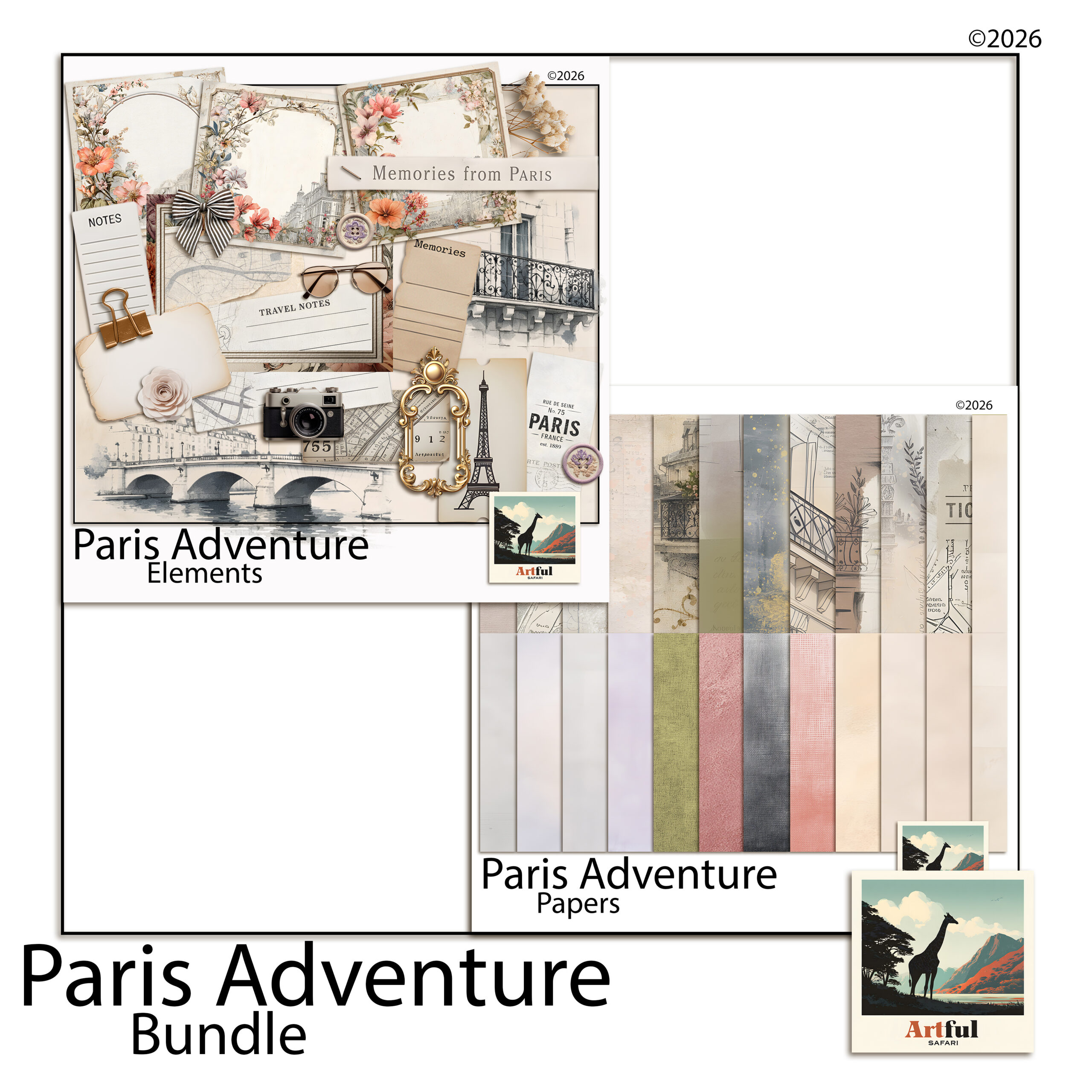
    How to make a travel scrapbook with the Paris Adventure digital kit
    Travel scrapbook pages built from the Paris Adventure Digital Scrapbook Bundle.

    For the app, Canva, Procreate and Photoshop all work. Use the one you open without thinking. A new tool on top of a new project is how albums stall at page two.

    Choosing the right kit for your destination

    The kit is the single biggest shortcut. A good one carries the colour, the textures and the small clipart that say “this is the place” before you have placed a photo. The wrong one fights you the whole way.

    Match the kit to the feeling of the trip, not just the geography. A city break wants clean papers, a few landmark touches and plenty of white space for street photos. A wildlife trip wants warm earthy tones and animal motifs. A beach holiday wants sea blues and soft sand textures. When the mood is already baked into the papers, the album holds together without you doing colour theory at midnight.

    One more thing on kits: pick one that has more than papers. The frames, journaling cards and alphabet pieces in a full bundle are what let you finish a page without hopping between five different downloads. A single coordinated set is faster to work in and looks tidier on the page.

    How to make a travel scrapbook step by step

    This is the order I use for every trip album, short weekend or three-week holiday. Each step hands you something to build on.

    1. Sort and cull your photos. Group by day, then keep five to eight per day that move the story along. A blurry one with a great memory beats a sharp one of nothing.
    2. Set your page size. A 12×12 inch square is the standard for digital scrapbook layouts and it gives album printers and online viewers an easy ratio to work with.
    3. Choose one kit for the whole trip. One palette across every page is what makes a finished album feel like a set rather than a pile of unrelated pages.
    4. Build the title page first. Trip name, dates, one hero photo. This sets the tone and you will reuse its fonts on the rest.
    5. Block out a page per day or per place. Drop the day’s photos in rough positions before you fuss over framing. Get the bones down, then refine.
    6. Add frames, then journaling. A photo frame PNG tidies the edges. A line or two of journaling tells the part the photo cannot.
    7. Review the whole album, then export. Look at it start to finish for repeated layouts and gaps, fix those, then export each page at full quality.

    That is the spine of how to make a travel scrapbook. The steps stay the same whether you have forty photos or four hundred.

    Title pages vs map and ticket-stub pages

    Not every page does the same job, and mixing the types is what keeps an album from feeling flat.

    A title page opens a section. It carries the trip name, the dates and one strong photo, with a lot of breathing room. A map page sets the scene: a route line, pins on the cities, maybe a small photo at each stop. A ticket-stub or ephemera page holds the bits you would have taped into a paper travel scrapbook, the boarding pass, the museum ticket, the cafe receipt. Scan or photograph those, drop them in as their own little collection, and they carry more of the trip than another posed shot would.

    A rough rhythm that works: title page, map page, then two or three photo spreads, then an ephemera page to close the section. Repeat per leg of the trip.

    How to tell the trip story, not just show photos

    A wall of photos is an album anyone can make. The story is what you remember when you reopen it in ten years.

    Write journaling in your own voice. Not “Day 3, Louvre” but the queue in the rain, the room you walked past three times, what you actually ate. Short is fine. Specific beats long.

    • Caption the unglamorous shots. The train delay and the wrong turn age better than the posed ones.
    • Use journaling cards for prompts: best meal, what surprised me, what I would do again.
    • Leave one page for the people, not the places. Faces date a trip better than landmarks.
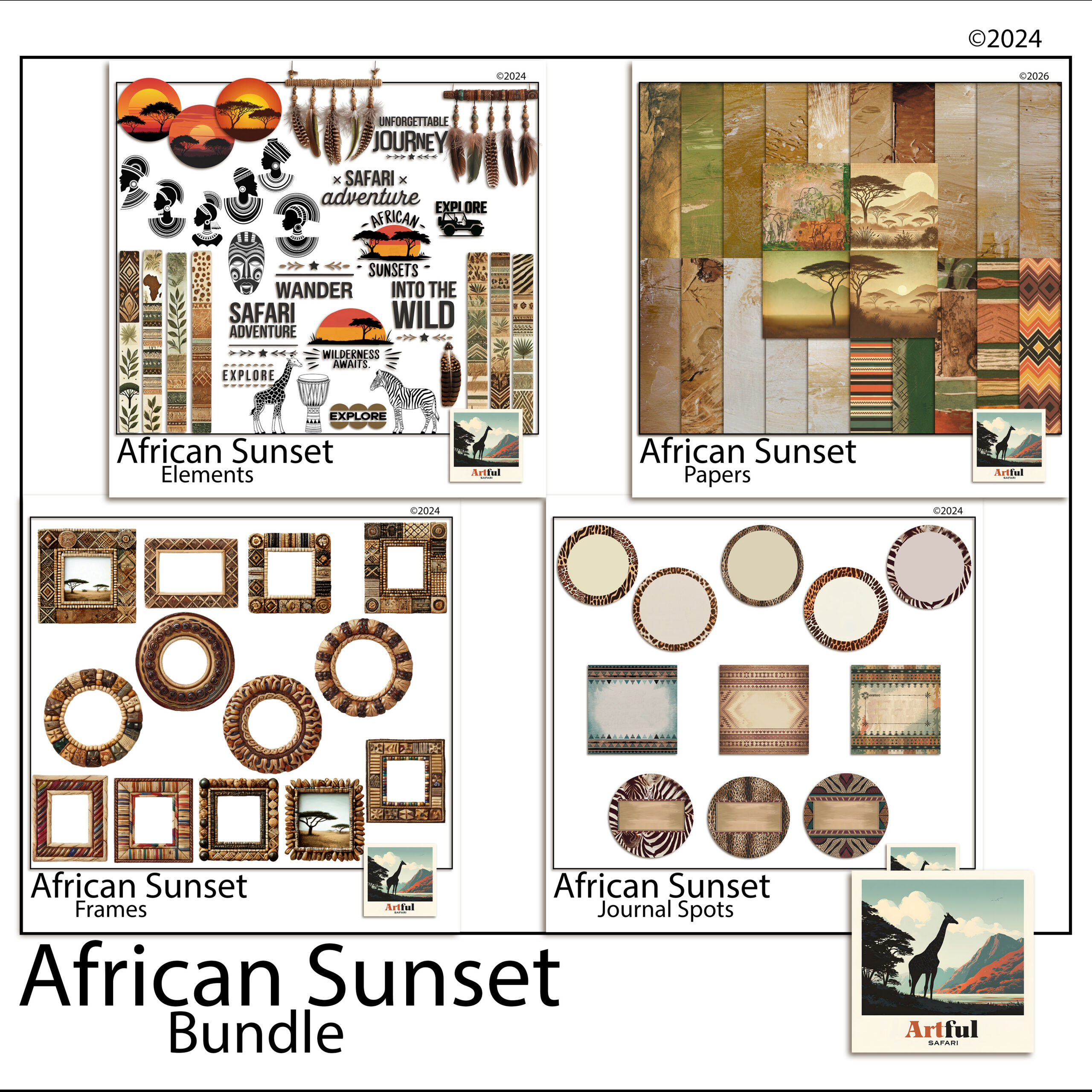
    African Sunset travel scrapbook kit pages for a safari album
    Warm safari pages from the African Sunset Digital Scrapbook Bundle.

    If you want a worked example for a city break, my Paris scrapbook kit ideas for a travel album walks through the same approach with one kit start to finish.

    Common mistakes that slow a travel album down

    Most stalled albums fail for the same handful of reasons. Knowing them up front saves you the redo.

    • Too many photos per page. Six photos crammed into a 12×12 read as a contact sheet. Three or four with room around them read as a memory.
    • Mixing kits. Two palettes on facing pages make the album feel borrowed from different books. Commit to one set for the whole trip.
    • Skipping journaling until later. Later never comes. Write a line while the trip is fresh, even if it is rough.
    • Editing photo by photo before laying out. Build the pages first, then do any colour tweaks in one pass. Otherwise you polish shots that never make the cut.

    None of these are hard to avoid. They just tend to creep in when you start arranging before you have a plan, which is why the photo cull and the single-kit choice come first.

    A page-type plan for a one-week trip

    Here is a plan I would hand someone with a week of photos and no idea where to start. Treat the page counts as a starting point, not a rule.

    Page typeHow manyWhat goes on it
    Title page1Trip name, dates, one hero photo
    Map / route page1Route line, city pins, small stop photos
    Daily photo spread5 to 7Five to eight photos per day with short captions
    Food page1Every meal worth remembering in a grid
    People page1Faces, candids, who you travelled with
    Ephemera page1 to 2Tickets, stubs, receipts, scanned and arranged
    Closing page1One favourite photo and a few lines on the trip

    That lands a one-week trip at roughly twelve to fifteen pages, which prints into a tidy album and reads in one sitting.

    Key takeaways

    • Sort and cull photos first, by day, before you open a single page.
    • Pick one digital kit for the whole trip so the album reads as a set.
    • Build the title page first, then block out a page per day before refining.
    • Mix page types: title, map, photo spreads, ephemera, people.
    • Journaling in your own voice is what carries the story years later.

    Frequently asked questions

    How many photos should go in a travel scrapbook?

    Keep five to eight photos per day of the trip. For a one-week holiday that lands you around forty photos across twelve to fifteen pages, which reads well and prints into a tidy album.

    What size should travel scrapbook pages be?

    A 12×12 inch square is the standard for digital scrapbook layouts. It gives album printers and online viewers an easy ratio and keeps every page consistent.

    Do I need design experience to make a travel scrapbook?

    No. If you can move and resize a photo in Canva, Procreate or Photoshop, you can build the pages. A pre-made kit does the colour and clipart work for you.

    What is the best app for a digital travel scrapbook?

    The one you already know. Canva is the easiest start, Procreate suits iPad users, and Photoshop gives the most control. Pick the app you open without thinking.

  • Digital Scrapbook File Formats: The 3 Types, Made Easy

    Digital Scrapbook File Formats: The 3 Types, Made Easy

    The three digital scrapbook file formats you’ll meet are PNG, JPG and PDF: PNG holds transparent clipart, frames and overlays; JPG carries full-colour papers in a smaller file; and PDF packs pages or a guide into one tidy document.

    Knowing the file formats tells you, at a glance, what each file in a kit is for and how to use it.

    What are the main digital scrapbook file formats?

    Most kits use three file formats, and each one has a job. The fastest way to read a kit is to know what the extension on each file is telling you.

    • PNG, for anything that needs a see-through background: clipart, frames, alphabets, overlays.
    • JPG, for solid rectangular images, mainly patterned papers, in a smaller file size.
    • PDF, for multi-page documents: a printable journal, a guide, or a sheet of elements on one page.

    You don’t need new software for any of them. Procreate, Photoshop, GoodNotes, Canva and even your tablet’s photo app open all three.

    PNG vs JPG: the two file formats you’ll touch most

    This is the distinction that trips people up most, so here it is plainly.

    A JPG is always a full rectangle with no transparency. That’s perfect for a patterned paper, where you want the colour to fill the whole page. JPGs also compress well, so a pack of papers stays a reasonable download size. The papers in the Faded Reverie Digital Scrapbook Papers are supplied as JPGs for exactly that reason.

    JPG digital scrapbook papers from the Faded Reverie set
    Full-colour JPG papers in the Faded Reverie Digital Scrapbook Papers set.

    A PNG can carry a transparent background. Drop a PNG lemon or a frame onto your page and only the shape shows, with no white box around it. That’s why clipart, frames and alphabets come as PNGs, like the cutouts in the Italian Fruit Clipart, Olives, Lemons & Oil set. If a flower arrived as a JPG, you’d see an ugly square behind it.

    FormatTransparent?Best forWatch out for
    PNGYesClipart, frames, alphabets, overlaysLarger files than JPG
    JPGNoPatterned papers, photo backgroundsNo transparency, slight compression
    PDFPage-basedMulti-page sets, guides, single-sheet layoutsNot a layer you drop onto a page
    Transparent PNG clipart showing why digital scrapbook file formats matter
    Transparent PNG elements from the Italian Fruit Clipart set, one of the file formats built for layering.

    Why does 300 DPI matter on digital scrapbook files?

    DPI, dots per inch, describes how much detail is packed into each inch of an image. The higher the number, the more pixels you have to play with, so the image stays crisp when it’s shown large.

    300 DPI is the standard for craft files because it gives you room. At 300 DPI a 12-inch paper is 3600 pixels across, which holds up whether you view it full-screen on a tablet, zoom in to crop, or one day send it out for print. A 72 DPI web image would turn soft and blocky the moment you enlarged it.

    • You can always scale a 300 DPI file down without losing quality.
    • You can’t realistically scale a low-resolution file up; the detail simply isn’t there to invent.

    So 300 DPI is headroom. Even if you only ever view your pages on a screen, starting high means the file never looks soft when you zoom or resize.

    When does the PDF in a kit actually matter?

    Of the three file formats, PDF is the odd one out: it’s a document, not a layer you drop onto a page. You’ll see it used three ways.

    1. Printable journals and inserts arrive as a PDF so the pages stay in order and at the right size.
    2. Guides and instructions ride along as a PDF you read once.
    3. Single-sheet element collections sometimes come as a PDF, with all the pieces laid out on one page.

    If you want to use one element off a PDF sheet on a digital page, you’ll usually have a PNG version alongside it. Reach for the PNG to layer, and keep the PDF for the full document.

    How do the file formats fit together on a page?

    A typical digital page stacks them: a JPG paper on the bottom, PNG elements and a PNG frame on top, your photo tucked behind the frame. The file formats aren’t competing, they each sit on a different layer.

    That layering is where a lot of the craft lives. If you want a photo to sit neatly inside a shape or frame, my How to Use Clipping Masks guide shows the move that ties it all together.

    How do I keep my files organised by format?

    A kit can land as dozens of files, and a tidy habit on day one saves a lot of hunting later. The file formats are a useful sorting clue in themselves.

    • Keep each themed kit in its own folder, named for the theme so you can find it by mood, not by date.
    • Inside it, the JPGs are your papers and the PNGs are your elements and frames. Many kits already split them into Papers and Elements subfolders; if not, it takes a minute to do yourself.
    • Leave the PDF where it is. It’s usually the guide or a printable set, not something you’ll layer.

    One more thing worth checking: file size. PNGs run larger than JPGs because they store the transparency data, so a folder of frames can be heavier than a folder of papers. That’s expected, not a fault.

    What format will my finished page be?

    When you flatten and export a page, you pick from the same file formats, and the right choice depends on what the page holds.

    • Export as JPG for a finished page that fills the whole canvas with no transparency. It’s the smaller file and fine for sharing on screen.
    • Export as PNG if any part of the page needs to stay transparent, for example a title graphic or a single element you want to reuse elsewhere.

    For a normal full layout, JPG is the usual export. Keep your editable, layered file too (the app’s own format), so you can go back and change a photo or move an element without rebuilding the page.

    What format mistakes cost people the most time?

    A few small mix-ups come up again and again. They’re quick to avoid once you know the file formats behind them.

    • Using a JPG where you needed a PNG. Drop a JPG element on a page and you get a white box around it. If a cutout has an ugly square, you’ve grabbed the wrong file; look for the PNG version.
    • Flattening too early. Once a page is exported to JPG, the layers are gone. Save the editable file first, then export a copy.
    • Resizing a small file up. Stretching a low-resolution image past its size turns it soft. Start from the full 300 DPI file and scale down only.

    None of these break anything permanently if you’ve kept your originals, which is the real lesson: hold on to the high-resolution files a kit comes with, and work on copies.

    Key takeaways

    • The three file formats split cleanly: PNG = transparent cutouts (clipart, frames, alphabets); JPG = full-colour rectangular papers; PDF = multi-page documents and guides.
    • Use PNG when you need a see-through background and JPG when you want colour to fill the whole sheet.
    • 300 DPI is headroom: it stays sharp when you zoom, crop or resize, and you can always scale down but not up.
    • Layer them together, JPG paper at the bottom, PNG elements and frames on top, and keep PDFs for reading or full-page sets.

    Frequently asked questions

    What is the difference between PNG and JPG in a scrapbook kit?

    PNG files can have a transparent background, so they suit clipart, frames and alphabets. JPG files are solid rectangles with no transparency, which makes them right for patterned papers.

    Why are digital scrapbook papers 300 DPI?

    300 DPI packs enough detail for the image to stay sharp when viewed large, zoomed or cropped. It gives you headroom; you can scale a high-resolution file down but you can’t add detail by scaling up.

    Which format should I use for clipart?

    PNG. Its transparent background means only the shape shows when you place it, with no white box around the edge.

    What is the PDF in a digital kit for?

    PDF is a document format used for multi-page sets, printable journals, guides, or a single sheet of elements. It’s for reading or printing in order, not a layer you drop onto a page.

    Do I need special software for these file formats?

    No. Apps like Procreate, Photoshop, GoodNotes and Canva open all three file formats, and your tablet’s built-in photo app handles PNG and JPG too.

  • What Is a Junk Journal? A Beginner’s Guide in 5 Easy Steps

    What Is a Junk Journal? A Beginner’s Guide in 5 Easy Steps

    What is a junk journal? It’s a handmade book bound from salvaged and mixed papers, old book pages, envelopes, maps, tags and patterned scraps, that you fill with writing, photos, lists and small keepsakes.

    There are no neat-grid rules. You reuse the bits most people throw out and build something layered and worth keeping, which is why it’s an easy craft to start with whatever you already have on the desk.

    When you’re ready to make one, our printable junk journal kits give you matching papers to start with, and many include ephemera too.

    What is a junk journal, and why do people make one?

    A junk journal is a bound book made from odds and ends rather than blank store-bought pages. The junk is the point: ticket stubs, brown paper bags, sheet music, fabric offcuts, packaging, anything with a bit of texture or history gets a home on the page.

    People keep them for a few reasons:

    • To hold memories from a trip, a year or a season without the pressure of a tidy photo album.
    • To use up paper scraps and pretty offcuts that feel too good to bin.
    • To have somewhere to write and stick things that isn’t a fresh, intimidating notebook.

    If a blank page makes you freeze, a junk journal helps. The page starts busy, so you’re adding to something instead of staring at white space. I find that one detail is what gets most people over the first-page hump.

    What is a junk journal shown through Folklore Forest botanical junk journal pages
    Layered botanical pages from the Folklore Forest Botanical Junk Journal Bundle.

    Junk journal vs scrapbook vs planner: what’s the difference?

    They overlap, which is where the confusion comes from. The quick split is about purpose and how much structure each one wants.

    FormatMainly forHow structuredTypical pages
    Junk journalFree mixed-media keeping and writingLoose, no rulesLayered papers, pockets, tuck-spots, journaling
    ScrapbookShowing off photos around a themePlanned layoutsPhoto, paper, title, journaling block
    PlannerOrganising time and tasksDated and griddedCalendars, lists, habit trackers

    A scrapbook page usually has one or two hero photos. A junk journal page might have no photo at all, just layered paper, a pocket and a few lines of writing. If you love the layering but rarely print photos, that style probably suits you better.

    Digital vs physical: which kind should you make?

    A physical journal you stitch, fold and glue by hand. A digital one you build on a tablet or computer in apps like Procreate, Photoshop, GoodNotes or Canva, dropping papers and elements onto layers and rearranging until it sits right.

    • Physical: real texture, you can tuck in a real ticket, but it takes space, supplies and a bit of mess.
    • Digital: nothing to store, undo fixes every mistake, and one set of papers makes endless pages. No glue drying time.

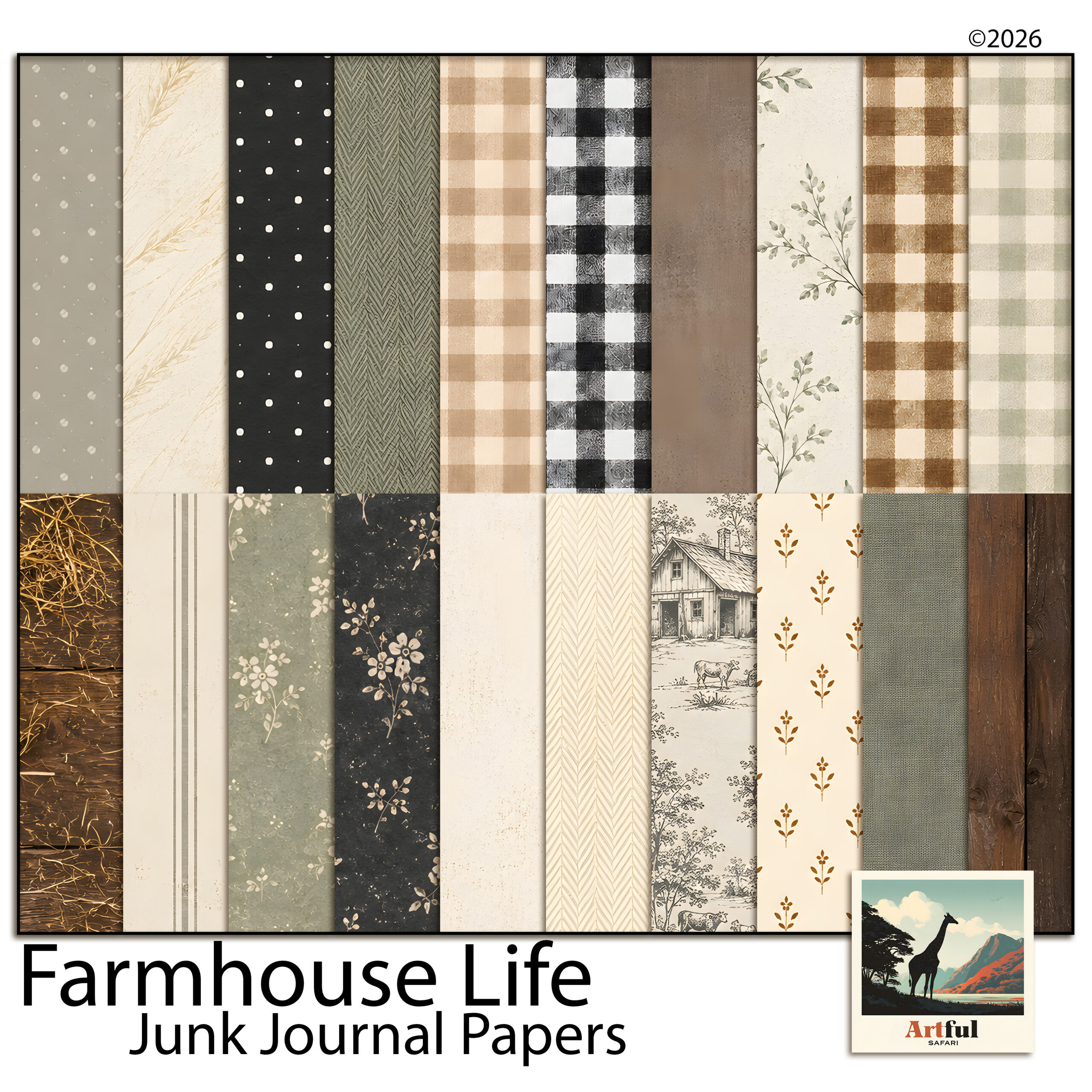
    The two aren’t rivals. These papers are the one digital download you genuinely can print: many makers buy a digital set, print the sheets at home on a heavier paper, then cut and bind a real book. The Farmhouse Life Junk Journal Papers work that way, designed to sit at A4 or Letter so a home printer can handle them.

    Farmhouse Life junk journal papers ready to print and bind
    Printable base papers from the Farmhouse Life Junk Journal Papers.

    What actually goes inside a junk journal?

    Most pages are built in layers, bottom to top:

    1. A base paper for the whole page, often an aged or patterned sheet.
    2. Pockets and tuck-spots made from folded paper or an envelope, to hold loose bits.
    3. Ephemera, the small printed extras: tags, labels, tickets, stamps, journaling cards.
    4. Your own bits, the writing, a photo, a pressed flower, a note to your future self.

    There’s no quota. One page might be a single sheet with a line of writing. The next might have four tucked cards and a fold-out. That swing is normal and part of the look.

    How do you start a junk journal this week?

    Keep the first one small so you actually finish it.

    1. Pick a theme you care about, a holiday, a child’s year, your garden, so the pages have a reason to exist.
    2. Gather a base set of papers. A themed bundle like the Folklore Forest Botanical Junk Journal Bundle gives you matched papers, ephemera and elements without hunting for pieces that go together.
    3. Decide digital or physical. On a tablet, start a new page and drop a base paper on the bottom layer. Building a real book? Fold five or six sheets in half and stitch the spine.
    4. Fill one page, not the book. Base paper, one pocket, one card, a couple of lines of writing. Done.
    5. Come back tomorrow and do the next page. The habit matters more than any single spread.

    Once you’ve made a page or two by hand, building one on a tablet is a small leap. My How to Make a Digital Junk Journal guide walks through it in six steps.

    What mistakes do beginners make?

    Almost everyone hits the same few snags on the first book. None of them are serious, but knowing them up front saves a lot of frustration.

    • Trying to fill every page perfectly before moving on. The book grows over weeks. Leave half-finished pages and come back to them.
    • Buying supplies instead of making pages. It’s easy to collect papers and ephemera for months and never bind a single book. One matched set is enough to start.
    • Over-gluing on paper, over-layering on a tablet. A page can breathe. Some of the best spreads are a single sheet with one tucked card.
    • Worrying it isn’t good enough to keep. The point is the keeping, not a gallery. Wonky edges and crossings-out are part of the look.

    The makers who keep at it are the ones who finished a small, messy first journal rather than planning a perfect one. Done beats neat every time here.

    Is a junk journal a good first paper craft?

    It’s one of the friendliest crafts to start, for a reason worth spelling out: there’s no blank-page fear and almost no wrong move. A scrapbook page can feel like it needs the right photo and a tidy layout. A junk journal asks for none of that.

    It also costs very little to try. A printable paper set, a printer, scissors and glue will get a physical book going. On a tablet, one app and one digital paper set is the whole kit. You can decide whether you love it before spending more.

    And it scales with you. The first book might be five rough pages about one weekend. A year later you might be stitching signatures, adding pockets and fold-outs, and keeping a journal per season. The craft stretches as far as you want to take it, which is rare for something this easy to begin.

    If you’re still deciding between a junk journal and a more photo-led project, think about what you actually want to keep. Lots of photos you’re proud of point towards a scrapbook. A drawer of tickets, letters, recipes and odd bits of paper points squarely at a junk journal. Most people who try both end up keeping both, for different jobs.

    Key takeaways

    • A junk journal is a handmade book made from mixed and salvaged papers, filled with writing, photos and keepsakes.
    • It’s looser than a scrapbook and freer than a planner, with no layout rules to follow.
    • You can make one physically by hand or digitally on a tablet, and the papers are the one digital download you can print to bind a real book.
    • Start small: one theme, one matched paper set, one finished page at a time.

    Frequently asked questions

    What is the point of a junk journal?

    It’s a place to keep memories, writing and keepsakes without the pressure of neat layouts, while reusing paper scraps and ephemera you’d otherwise throw away.

    What is the difference between a junk journal and a scrapbook?

    A scrapbook is built around photos with planned layouts and a theme. A junk journal is looser, often photo-free, and focuses on layered papers, pockets and writing.

    Do you need special supplies to start a junk journal?

    No. You can start with paper scraps, an old book, glue and a pen. A themed digital or printable paper set just gives you matched pieces so it looks pulled together faster.

    Can a junk journal be digital?

    Yes. You can build one on a tablet or computer in apps like Procreate, GoodNotes or Canva by layering digital papers and elements, with nothing to store and easy undo.

    How many pages should my first junk journal have?

    Keep it small, around five or six folded sheets, so you finish it. A short completed journal beats a thick one you abandon halfway.

  • How to Use Clipping Masks in Digital Scrapbooking: 4 Easy Apps

    How to Use Clipping Masks in Digital Scrapbooking: 4 Easy Apps

    Clipping masks let you drop a photo or paper into a shape and have it show only inside that shape, so a snapshot fills a frame or a heart cleanly with nothing spilling over the edges.

    Once you’ve used one, you won’t build a page without them. Here’s how it works, plus step-by-step instructions for Procreate, Photoshop, Canva and PicMonkey.

    What does a clipping mask actually do?

    It uses one layer as a stencil for another. The bottom layer is the shape, a circle, a heart, a torn paper edge, and the layer above it, your photo or paper, shows only where the shape exists. Everything outside the shape hides, but nothing is deleted.

    That last part matters. Your photo is still whole underneath. You can slide it around inside the shape, scale it up, or swap it for another, and the mask stays put. It’s the cleanest way to fit a photo into a frame without cropping it for real.

    Why scrapbookers reach for them

    On a real page you’d cut a photo to fit a frame, and once it’s cut, it’s cut. A mask gives you that fitted look while keeping every option open. Three reasons they earn a place in your workflow:

    • Photos sit inside frames, hearts and torn shapes with clean edges
    • You can reposition or swap the photo at any point, nothing is destroyed
    • The same shape works on page after page, so your album holds together
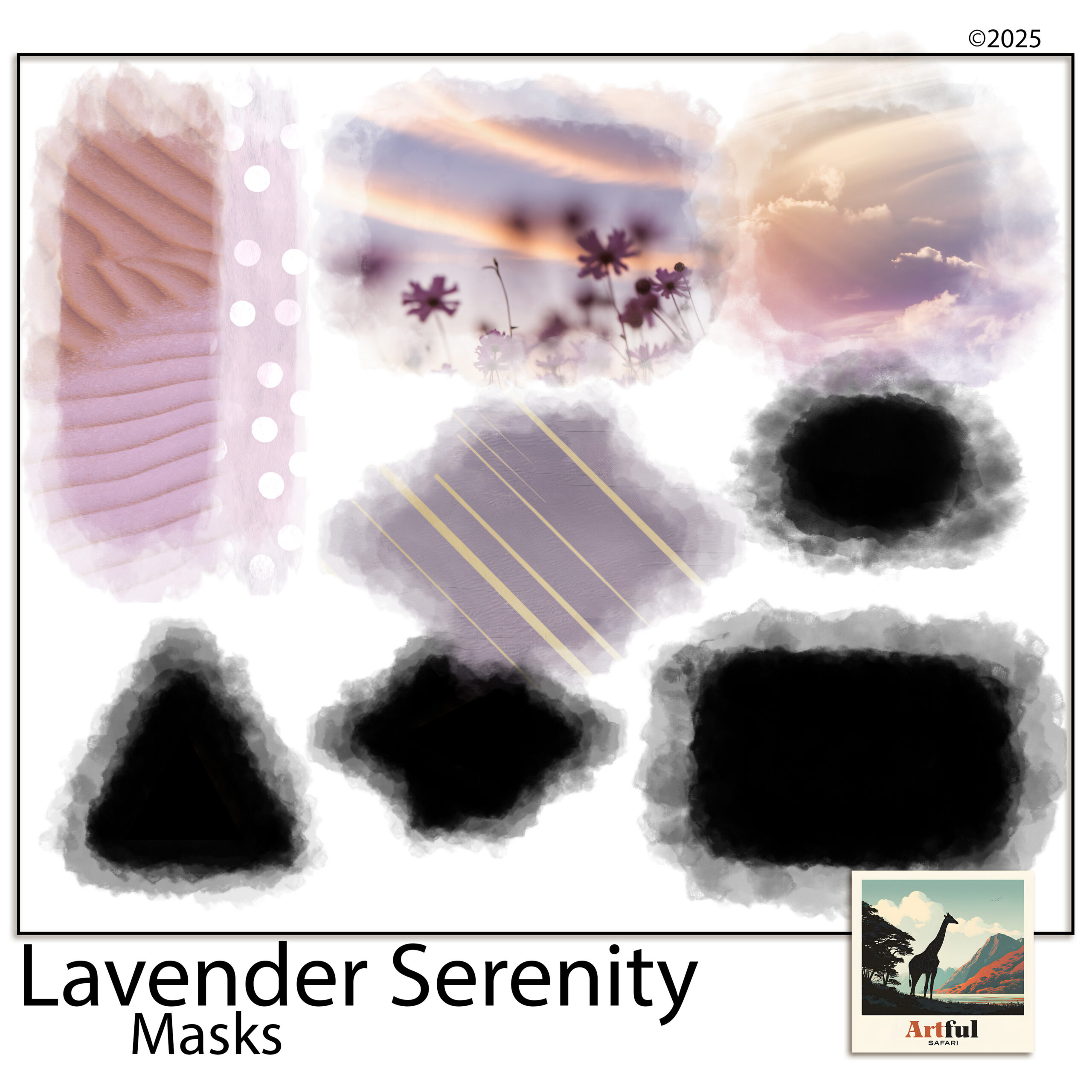
    Clipping masks for digital scrapbooking in soft lavender shapes
    Ready-made shapes from the Clipping Masks for Scrapbooking Lavender set.

    How to use clipping masks in Procreate

    In Procreate the option lives in the layer menu.

    1. Add your mask shape as its own layer (a circle, a torn shape, whatever you’re clipping into).
    2. Add your photo on a new layer directly above the shape.
    3. Tap the photo layer and choose Clipping Mask.
    4. The photo now shows only inside the shape. Tap and drag to reposition it, or pinch to resize.

    Order is everything: the shape must sit below the photo, or the clip grabs the wrong layer. If your photo vanishes, your shape layer is probably empty or hidden, so check it has actual colour in it.

    A quick extra: you can clip a paper or a texture to a shape the same way, not only photos. Want a wood-grain heart or a floral circle? Put the shape down, lay the paper above it, clip, done. Once it clicks, you’ll use it for titles and elements as much as photos.

    How to use clipping masks in Photoshop

    Photoshop builds the same way round, and Adobe’s own guide covers the keyboard shortcuts if you want them.

    1. Place your shape or frame on its own layer.
    2. Drop your photo on the layer directly above it.
    3. Right-click the photo layer and choose Create Clipping Mask (or press Alt/Option and click between the two layers).
    4. Use the Move tool to slide the photo around inside the shape until it sits right.

    If you’re layering papers as well as masking photos, the Digital Scrapbook Papers in Procreate guide pairs well with this one.

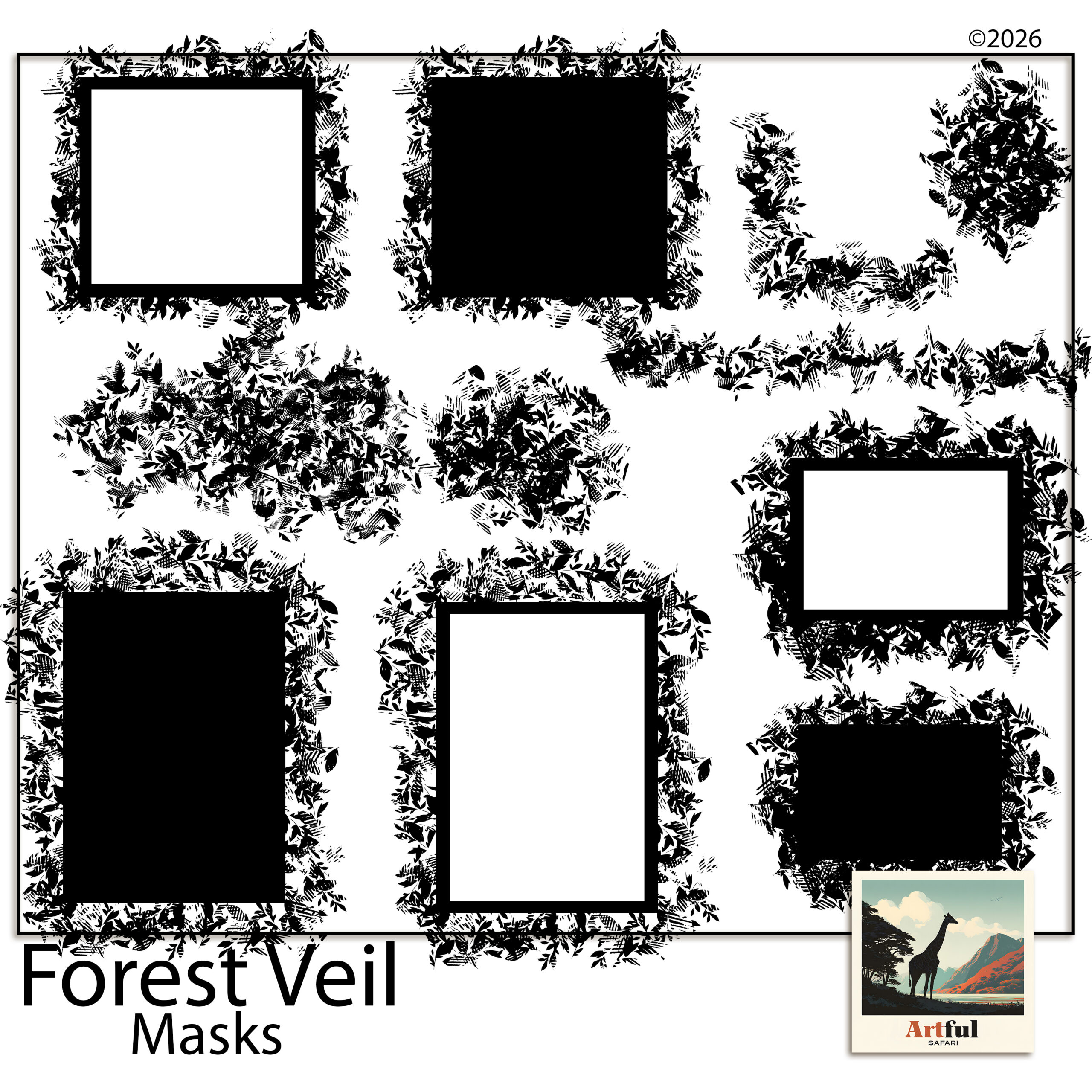
    Forest Veil digital scrapbook masks in organic torn shapes
    Torn, organic edges from the Forest Veil Digital Scrapbook Masks set.

    How to drop a photo into a masked frame in Canva or PicMonkey

    Canva and PicMonkey don’t use the words clipping mask, but the photo-into-frame trick is built in and even simpler.

    1. In Canva, search Frames in the Elements panel and add one to your page.
    2. Drag your photo on top of the frame and let go. Canva drops it inside automatically.
    3. Double-click to reposition or zoom the photo within the frame.
    4. In PicMonkey, the same idea lives under image masks: add the mask, then clip your photo to it.

    For organic, torn-edge looks rather than tidy geometric frames, mask sets like the Forest Veil Digital Scrapbook Masks give you shapes a built-in frame can’t.

    How the four apps line up

    Same result, slightly different words in each app. This is the cheat sheet I keep in my head.

    AppWhat it’s calledHow you apply it
    ProcreateClipping MaskTap the photo layer, choose Clipping Mask
    PhotoshopClipping maskRight-click the layer, Create Clipping Mask
    CanvaFramesDrag the photo onto a frame element
    PicMonkeyImage maskAdd the mask, then clip your photo to it

    What are the most common mistakes?

    Almost every clipping problem traces back to one of these. Here’s how each one looks and the fix.

    What you seeThe causeThe fix
    Photo fills the whole page, ignores the shapeLayers in the wrong orderMove the shape below the photo
    Nothing shows at allShape layer is hidden or emptyMake the shape visible and filled
    Photo looks stretchedResized by one corner, not proportionallyHold to keep proportions while scaling
    Can’t move the photo inside the shapeClipped the wrong layerUndo, select the photo layer, re-clip

    Ready-made clipping masks save you drawing shapes from scratch, so you spend the time placing photos instead of building stencils.

    Can you soften or blend the mask edge?

    Yes, and a soft edge is what separates a photo that’s stamped onto the page from one that sits in it. The trick is to soften the shape layer, not the photo.

    • Feathered edge: blur the shape layer slightly before clipping, so the photo fades out at the rim instead of stopping hard.
    • Torn-paper look: use a mask shape that already has a rough, organic edge, like a deckle or brush-stroke shape, and the photo inherits it.
    • Faded blend into the page: lower the photo layer’s opacity a touch, or set the shape to fade on one side, so the photo melts into the background paper.

    This is exactly what organic mask sets are built for. A soft, irregular shape does in one tap what would take careful erasing by hand, and it keeps every edit reversible because the photo underneath is never touched.

    One habit that prevents most headaches

    Name your layers. Once a page has a shape, a photo, a paper and a title all stacked up, it’s easy to clip the wrong one. A two-second label, photo, mask, base, means you always know which layer you’re grabbing, and the clip lands where you meant it to.

    When should you use a clipping mask instead of cropping?

    Reach for a clipping mask any time you might change your mind, which is most of the time. Cropping throws away the parts of the photo outside the frame, so if you later want the shot a little wider or shifted left, you’re stuck. A mask keeps the whole photo and just hides the overflow.

    The other case is shape. A plain rectangular crop is fine for a tidy grid, but the moment you want a photo inside a circle, a heart or a torn edge, a mask is the only way to get a clean result. Use a straight crop for speed on simple grids, and a mask for anything shaped or anything you might revisit.

    Key takeaways

    • A clipping mask shows your photo only inside a shape, without deleting anything.
    • In Procreate and Photoshop, the shape goes below the photo, then clip the photo to it.
    • Canva and PicMonkey use frames and image masks for the same drag-and-drop result.
    • Most mistakes are layer order; put the shape underneath and the clip behaves.

    Frequently asked questions

    What is a clipping mask in digital scrapbooking?

    It uses one layer as a stencil for another. The shape layer sits below your photo, and the photo shows only where the shape exists. Nothing is deleted, so you can reposition or swap the photo any time.

    Why does my photo cover the whole page instead of the shape?

    Your layers are in the wrong order. The shape has to sit directly below the photo for the clip to work. Move the shape underneath and re-apply the clip.

    Does Canva have clipping masks?

    Canva calls them frames. Search Frames in the Elements panel, add one, then drag your photo onto it and it drops inside automatically. Double-click to reposition or zoom the photo within the frame.

    Can I reuse the same mask shape on different pages?

    Yes. A mask shape is reusable, so one set works across as many pages and photos as you like. Ready-made mask kits save you drawing the shapes yourself.

  • Digital Scrapbooking for Beginners: Your First Page in 8 Easy Steps

    Digital Scrapbooking for Beginners: Your First Page in 8 Easy Steps

    Digital scrapbooking for beginners means building photo-album pages on a screen instead of with paper, scissors and glue. You drop your photos onto a ready-made patterned background, add a few decorations and a line or two of text, then save the finished page as an image file. Nothing to cut, nothing to store in a cupboard, and no wasted supplies when you change your mind.

    To start you need three things you can sort out in an afternoon: a device you already own, one layout app, and one themed kit of papers and clipart. I’ll take you through choosing each one and making your first page below.

    What is digital scrapbooking for beginners, really?

    It’s memory-keeping done in a layout app rather than with physical paper. You work in layers, stacked like sheets of glass. The bottom layer is a patterned background (a “digital paper”). On top of that you place your photo. On top of that go the decorations: a frame around the photo, a sprig of clipart in the corner, the date in a nice font. Move any layer, resize it, delete it, redo it. Your photos stay untouched the whole time.

    Most kits hand you the four building blocks of a page already made:

    • Papers — full-page patterns and textures you use as backgrounds.
    • Clipart (elements) — small cut-out images on a transparent background: flowers, leaves, ribbons, little objects.
    • Frames — borders you sit a photo inside.
    • Alphabets — letters as images, for titles when a plain font feels too flat.

    How it differs from the paper version

    The big one is that mistakes cost nothing. Trim a paper photo too short and it’s gone; on screen you press undo. You can also use the same kit on twenty pages without buying it twenty times, and your whole album lives in a folder instead of a box under the bed. If you’re still weighing the two approaches, I broke down the trade-offs in Digital vs Paper Scrapbooking.

    Scrapbooking for beginners: what do you actually need?

    Less than people think. Scrapbooking for beginners comes down to four things, and here’s a sensible first choice for each.

    WhatWhat it’s forBeginner pick
    A deviceSomewhere to build the pageThe iPad, phone or laptop you already have
    A layout appLets you stack and move layersCanva (free) or Procreate on iPad
    One themed kitPapers, clipart, frames that already matchA bundle in a colour you like
    Your photosThe actual memories5–10 from one day or trip

    You do not need a drawing tablet, a subscription, or any design training. Buying one matched bundle instead of loose pieces is the shortcut that saves beginners the most grief: the colours are picked to work together, so your first page looks deliberate without you knowing a thing about colour theory.

    Faded Reverie kit used for digital scrapbooking for beginners
    A soft, muted starter set: the Faded Reverie Digital Scrapbook Bundle is a forgiving scrapbooking for beginners pick because nothing clashes.

    Which app should a beginner pick?

    This depends entirely on what’s in your hands right now. All three below open the PNG and JPG files that come in a kit, and all three work in layers.

    If you have an iPad

    Use Procreate. It’s a one-off purchase, no subscription, and it handles layers and transparent clipart cleanly (the Procreate handbook covers the canvas setup). Set up a 12 x 12 inch canvas at 300 DPI and you’ve matched the size most kits are built to.

    If you’re on a phone or a laptop

    Use Canva. The free tier is plenty for a first page. You upload your papers and clipart, drag them onto a square page, and stack them. It runs in a browser, so nothing to install.

    If you already own Photoshop

    Then use it. Clipping masks and layer groups make it the most powerful of the three, but it’s the steepest to learn, so I wouldn’t buy it just for this.

    Pick one and commit for your first few pages. Hopping between apps to find the “best” one is how a fun afternoon turns into a frustrating week.

    How do I make my first scrapbook page?

    Here’s the shortest path from blank screen to a page you’re proud of. Give it an hour.

    1. Choose one story. One day, one trip, one person. Five to ten photos, not fifty. A tight set is far easier to lay out than a sprawling one.
    2. Open a square canvas. 12 x 12 inches at 300 DPI in Procreate or Photoshop; a square page in Canva. Square is the scrapbooking standard and it keeps your pages consistent.
    3. Drop in a paper. Drag one background paper across the whole canvas. Pick a quieter pattern, not the boldest one. The pattern is a backdrop, not the star.
    4. Place your photos. Start with one hero photo, larger, slightly off-centre. Add two or three smaller supporting shots. Leave breathing room around the edges.
    5. Add a frame or two. Sit your main photo inside a frame so it lifts off the busy paper. Don’t frame every photo; one or two is enough.
    6. Scatter a little clipart. A sprig in one corner, a small element near the title. Three or four pieces, then stop.
    7. Write a title and a date. A few words and the month and year. This is the part that turns a nice collage into a memory you’ll understand in ten years.
    8. Export. Save as a high-quality JPG or PNG. Keep the layered file too, so you can tweak it later.

    That’s a finished page. The only skill you used was dragging things around and knowing when to stop.

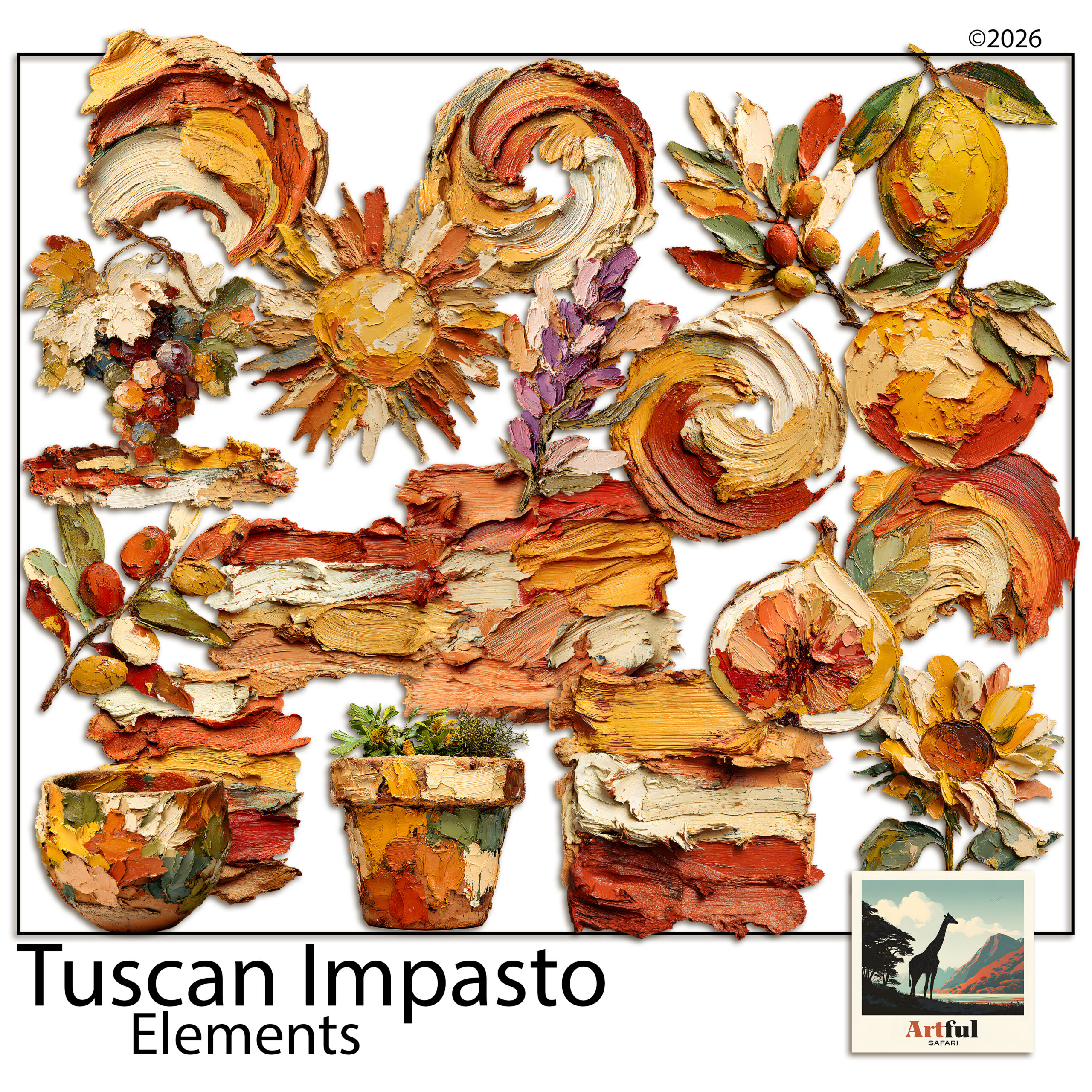
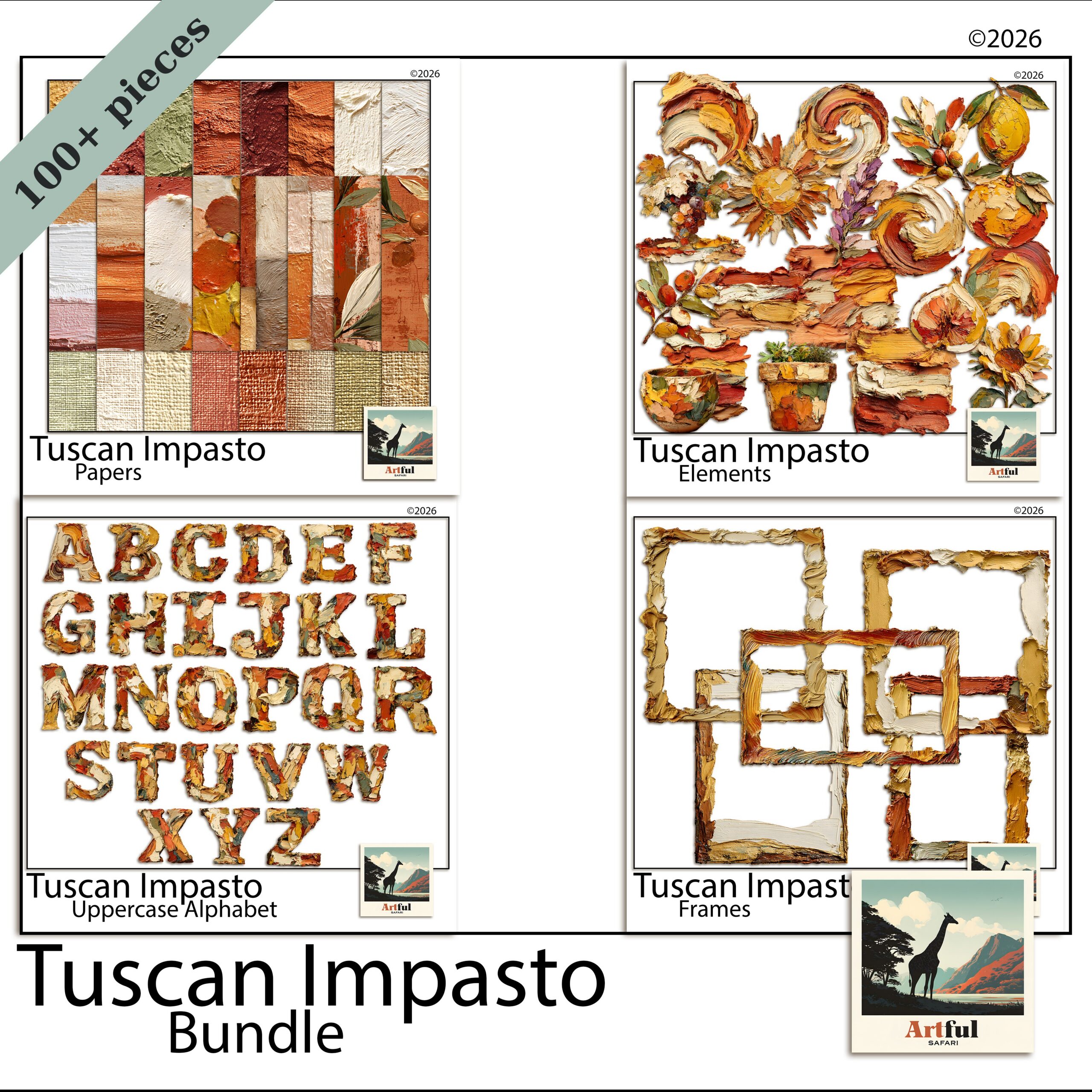
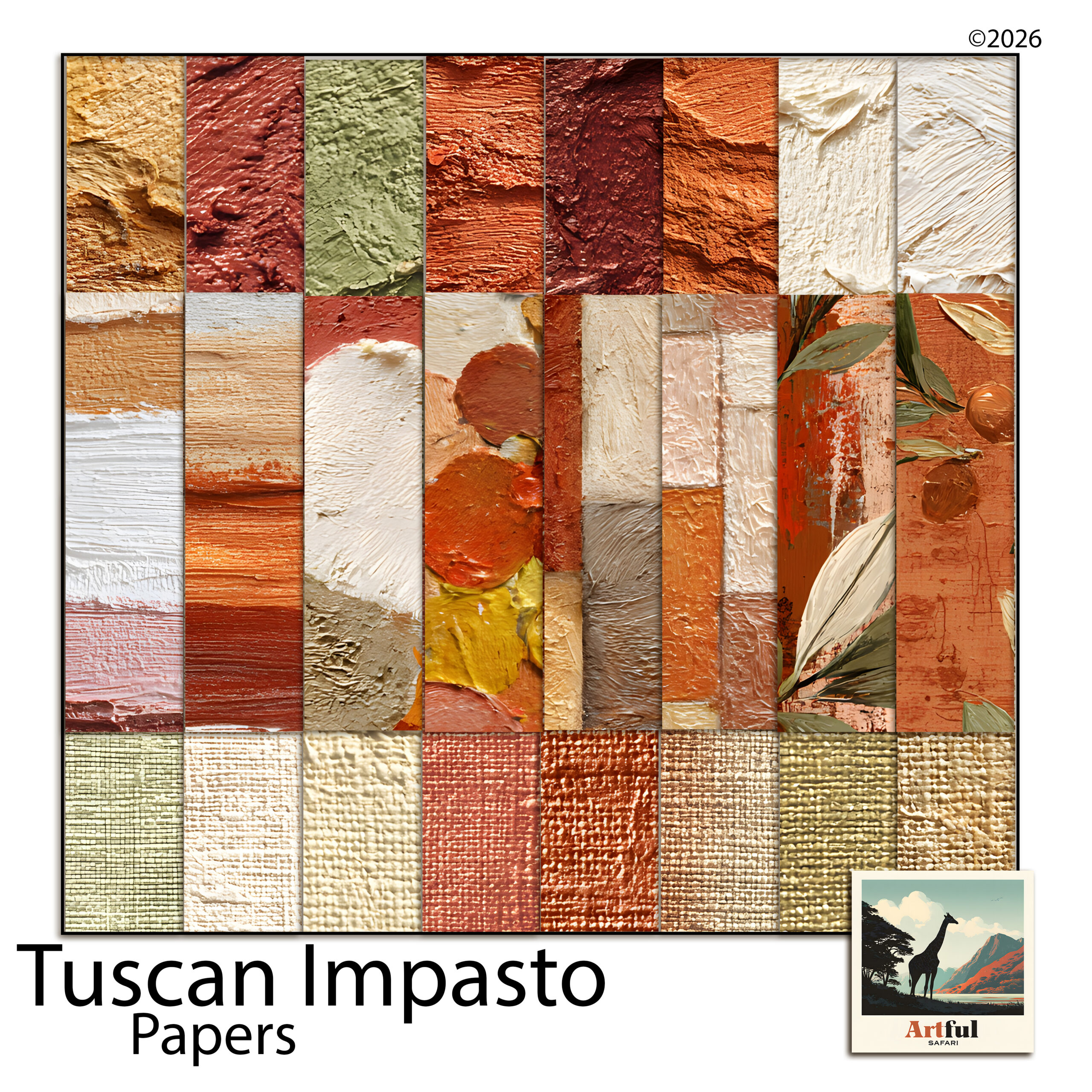
    Tuscan Impasto bundle papers and clipart for a first scrapbook page
    If your photos are warm and sunny, the Tuscan Impasto Digital Scrapbook Bundle gives you papers, frames and clipart that already match — another easy scrapbooking for beginners set.

    Scrapbooking for beginners: the snags to skip

    Almost every first-timer hits the same handful of snags. Here’s what they are so you can sidestep them.

    • Cramming the page. Empty space is doing a job. If it feels too plain, it’s probably right. Add one thing, not five.
    • Mixing five themes. Florals, then nautical, then geometric, all on one page. Stay in one kit until you’re confident, which is exactly why a matched bundle helps.
    • Stretching photos out of shape. Resize from a corner handle to keep the proportions, never by dragging a side.
    • Forgetting words. A page with no title or date is a pretty picture you’ll squint at later. Always add the who, where and when.
    • Saving low quality. Export at full resolution. A blurry, pixelated page is almost always a too-small or over-compressed file.

    Key takeaways

    • Scrapbooking for beginners needs three things: a device you own, one app (Canva or Procreate), and one matched kit.
    • Work in layers — paper at the back, photos in the middle, clipart and titles on top.
    • Keep your first page to one story, a handful of photos, and a few decorations. Restraint reads as polish.
    • A matched bundle does the colour work for you, so your page looks intentional from day one.

    Frequently asked questions

    Is digital scrapbooking for beginners hard to learn?

    No. Scrapbooking for beginners is mostly dragging photos around a screen. The hardest part is choosing your photos, not using the app, especially when your kit’s pieces already match.

    What is the best app for digital scrapbooking beginners?

    Canva if you’re on a phone or laptop and want free, or Procreate if you have an iPad and don’t mind a one-off purchase. Both open kit files and work in layers.

    Do I need to print my digital scrapbook pages?

    Not at all. Most people keep their albums on screen and share them as image files, or back them up to the cloud. Printing is optional, not the point.

    How much does scrapbooking for beginners cost?

    You can start free with Canva and a single kit, using the device you already own. There’s no subscription needed and no recurring supply costs the way paper has.

    What size should a digital scrapbook page be?

    A square 12 x 12 inch page at 300 DPI is the standard most kits are built for. Setting your canvas to that means papers and frames drop in at the right scale.

  • Scrapbook Page Titles: 6 Easy Steps to Title with Clipart

    Scrapbook Page Titles: 6 Easy Steps to Title with Clipart

    Scrapbook page titles work when they’re short, sized to be seen and clearly contrasted against the paper behind them, so the title names the page in a second and then steps aside for the photos.

    The fiddly part is alphabet clipart, where each letter is its own PNG and you assemble the word by hand. Get the spacing and contrast right and it lifts a page; get them wrong and it reads unfinished.

    How do you make a scrapbook page title that actually reads?

    A scrapbook page title earns its place by telling you what the page is in a second, then getting out of the way of the photos. The two jobs people get wrong are size and contrast. A title that’s too small disappears, and one that sits in the same tone as the paper behind it turns to mush.

    Pick a short phrase, give it room, and make sure it stands clearly off the background. Everything else is styling. A title is a signpost, not the destination, so if you’re spending longer on the lettering than on the layout, you’ve got the balance backwards.

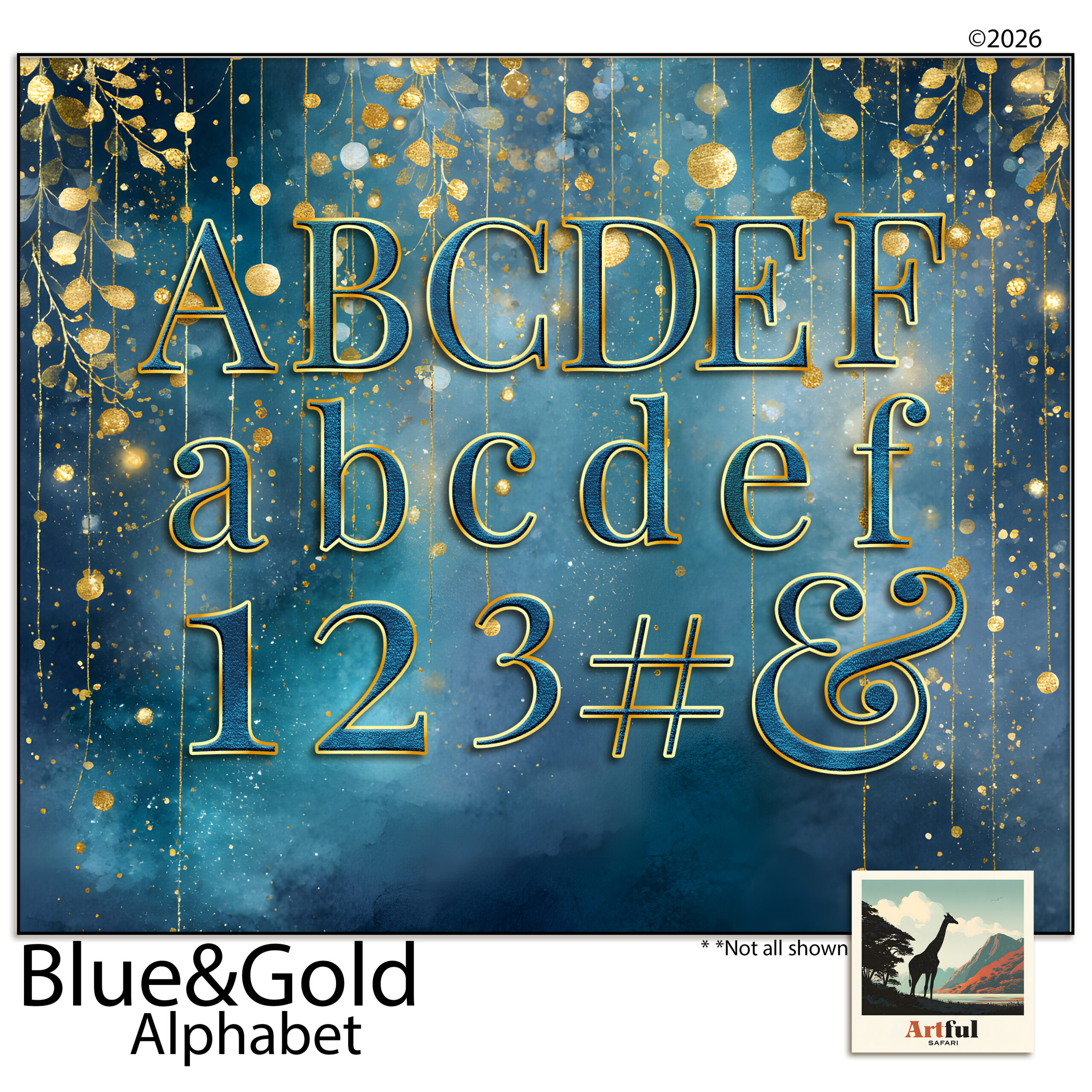
    Scrapbook page titles spelled out with blue and gold alphabet clipart letters
    Each letter of a scrapbook page title is its own PNG in the Blue Gold Digital Scrapbook Alphabet, so you build the word letter by letter.

    Where to put scrapbook page titles on the layout

    There are really only a handful of spots that work, and they all leave the photos as the main event.

    • Top-left or top corner. We read left to right and top down, so a title here gets seen first without a fight.
    • Across the bottom. Reads like a caption and leaves the upper page to a big photo.
    • Tucked into a quiet corner of the photo. Works when the image has empty sky, water or wall to sit on.
    • On a banner or journaling card. A solid shape behind the letters gives instant contrast on a busy paper.

    Whatever you choose, keep a clear margin around the word. Letters jammed against a photo edge look like an accident. If the page already has a strong focal point, a single hero photo say, put the title near it but not on top of it, so the eye lands on the photo and the title confirms what it’s looking at.

    Alphabet clipart vs a font: which should you use?

    Both can set a scrapbook page title. They behave differently once you’re on the page.

    Alphabet clipartA font
    TexturePainted, foiled, dimensional, matches a kitFlat colour unless you add effects
    SpacingYou place each letter, full controlType and go, faster
    Best forBig feature titles, the hero wordSubtitles, dates, journaling
    EffortA little fiddly, letter by letterQuick

    My usual move is alphabet clipart for the one big word and a plain font underneath for the date or the place. The textured letters carry the mood; the font keeps the details legible. Trying to set a whole long title in clipart letters is where people lose an afternoon and end up with wonky spacing, so reserve the clipart for the word that matters.

    Step by step: building a scrapbook page title with alphabet clipart

    Alphabet clipart comes as one PNG per letter, so you’re assembling the word rather than typing it. In Procreate, Photoshop or Canva the steps are the same.

    1. Drop in your first letter and size it to roughly the height you want the whole title.
    2. Bring in the rest, one at a time, on their own layers so you can nudge each one.
    3. Even out the spacing. Trust your eye over a ruler, since a rounded letter like O needs to sit a touch closer than a straight one like I.
    4. Sit the baseline level, or deliberately stagger it for a playful look, but commit to one or the other.
    5. Group the letters once it reads right, then resize the whole word as a unit.
    6. Add a soft shadow if the letters fade into the paper. A small drop shadow lifts them off the background.

    Mind the letter spacing

    Uneven gaps are the giveaway that a title was built by hand. Step back from the screen, or shrink the canvas right down. Spacing problems jump out at a small size that you’ll miss up close. The eye reads the gaps between letters as much as the letters themselves, so aim for even visual space rather than even measured space. Two straight letters need a little more room; a letter that opens outward, like an L or a T, can tuck closer to its neighbour.

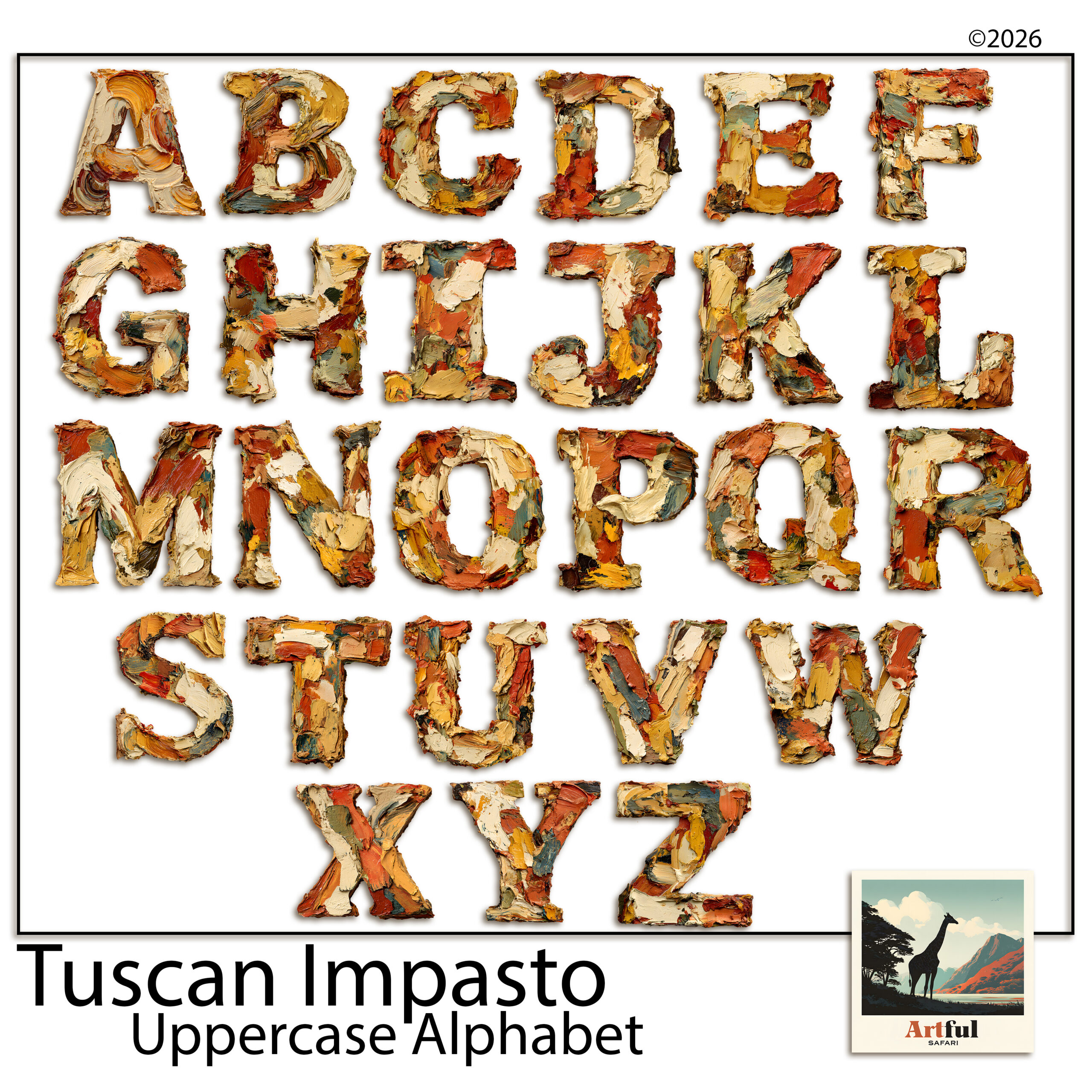
    Tuscan oil-paint alphabet clipart for warm Mediterranean album titles
    For warmer trips, the Tuscan Alphabet Clipart matches an Italian or Mediterranean spread.

    How do you match the lettering to the page?

    A scrapbook page title should belong to the same world as the rest of the layout. A painted, oil-textured alphabet looks at home on a warm Mediterranean or vintage page and out of place on a crisp, modern one. A few quick checks before you commit:

    • Colour. Pull the title colour from somewhere already on the page, a tone in a paper or a photo, so it ties in rather than floating.
    • Weight. A heavy clipart alphabet wants a bold, simple layout. A fine script wants more white space around it.
    • Era. A serif or hand-lettered style suits heritage and travel pages; clean sans-serif suits everyday and modern ones.

    Do you need a title on every page?

    No, and trying to is part of what makes albums feel repetitive. A scrapbook page title’s job is to mark a new chapter or a page that needs context. A run of everyday photos on matching paper often reads better with a single date or a one-word label than a full decorative title fighting for attention on every spread.

    A good rhythm across an album is a strong title on the opening page of each section, smaller labels or dates on the pages in between, and the occasional page left to speak for itself. If every page shouts, none of them stands out. Save the big lettering for the moments that earn it, and the album gets a sense of pace instead of feeling like the same page on repeat.

    What are the most common scrapbook page title mistakes?

    • Too many words. “Our wonderful family summer holiday by the sea” is a sentence. “Summer by the Sea” is a title.
    • Clashing styles. A painted Mediterranean alphabet on a sleek modern page reads off. Match the lettering to the kit.
    • No contrast. Pale gold letters on a cream paper vanish. Put a banner or shadow behind them.
    • Centred everything. A centred title over a centred photo on a symmetrical page is flat. Shift the title off-axis.

    If you want a full breakdown of choosing letter sets, I went deeper in Uppercase Alphabet Clipart.

    Key takeaways

    • Good scrapbook page titles are short, sized to be seen, and clearly contrasted against the paper.
    • Use alphabet clipart for the one hero word and a plain font for dates and journaling.
    • Build clipart titles letter by letter on separate layers, then group and resize as a unit.
    • Uneven spacing and weak contrast are the two faults that make a hand-built title look unfinished.

    Frequently asked questions

    How do you make a scrapbook page title?

    Pick a short phrase, place it top-left or along the bottom, and make sure it contrasts with the paper. Use alphabet clipart or a bold font for the main word and a plain font for the date underneath.

    What is alphabet clipart for scrapbooking?

    It’s a set of decorative letters supplied as one transparent PNG per letter, so you build a word by dropping in each letter on its own layer. It gives painted or foiled titles that match a themed kit.

    How many words should a scrapbook page title have?

    Two to four works best. A long sentence reads as journaling, not a title, so trim it to the shortest phrase that still says what the page is.

    Why does my clipart title look off?

    Usually uneven letter spacing or weak contrast. Shrink the canvas to spot gap problems, and add a soft shadow or a banner behind pale letters so they lift off the paper.

  • Digital Scrapbook Papers in Procreate: 6 Easy Layering Steps

    Digital Scrapbook Papers in Procreate: 6 Easy Layering Steps

    To layer digital scrapbook papers in Procreate, you import each paper onto its own layer in the Layers panel, then reorder, resize and blend them with opacity and blend modes. Clipping masks drop photos into frames, and Alpha Lock keeps texture inside a shape.

    The six steps below take a blank 12 x 12 canvas to a finished, layered page.

    Any of our digital scrapbook papers can be imported into Procreate the same way.

    How do you layer digital scrapbook papers in Procreate?

    Layering is just stacking each digital scrapbook paper on its own layer in the Layers panel, then deciding what sits where and how the edges blend. Procreate does the heavy lifting. Once you understand the Layers panel, blend modes and clipping masks, a multi-paper page takes minutes.

    Procreate is a popular choice for this because it gives you precise control over every layer, real blend modes, and clipping masks, all on a one-off purchase with no subscription. If you have an iPad and an Apple Pencil, it is hard to beat for scrapbook pages.

    The walkthrough below assumes you have digital scrapbook papers already saved to your iPad (in Files or your Photos). If you have those, you are ready. The whole sequence is six steps, and the first few become muscle memory quickly.

    Layering digital scrapbook papers in Procreate using the Faded Reverie set
    Soft, low-contrast sheets like the Faded Reverie Digital Scrapbook Papers layer well without fighting each other.

    Step 1: Set up the canvas

    Open Procreate, tap the plus, and choose Create Custom Size. Set it to 3600 x 3600 px at 300 DPI for a standard 12 x 12 inch page. Procreate caps the number of layers based on canvas size and your iPad, so a 300 DPI 12 x 12 is a sweet spot: big enough to look sharp, small enough to keep plenty of layers.

    If you go bigger than this, Procreate gives you fewer layers, which bites on a busy collage page. If you go smaller, the page looks soft when you zoom. So unless you have a reason to change it, stay at 12 x 12 and 300 DPI.

    Name the canvas something you will recognise later. Future you will thank present you.

    Step 2: Import your first digital scrapbook paper as the base

    Tap the wrench (Actions) > Add > Insert a file (or Insert a photo). Pick your background paper. It comes in on its own layer. Pinch to fit it to the canvas, then tap the arrow to confirm.

    Choose a quiet, textured digital scrapbook paper for the base. A loud pattern here makes everything above it hard to read. A faded linen or a soft olive texture works well as the bottom of the stack.

    Step 3: Add more digital scrapbook papers, each on its own layer

    Repeat the insert step for every digital scrapbook paper you want. Each lands on a new layer above the last. Open the Layers panel (the two-squares icon, top right) and you will see them stacked. The top layer in the panel is the top layer on your page.

    A habit worth starting now: rename your layers as you go. Tap a layer, choose Rename, and call it “base paper” or “blue tile” or “photo”. On a simple page you can get away without it, but the moment a spread has a dozen layers, named ones save you from poking at the wrong thing.

    1. Insert the paper.
    2. Resize and position it (drag, pinch, rotate).
    3. Drag the layer up or down in the panel to change the order.

    This is the core of layering digital scrapbook papers in Procreate: one paper per layer, reordered by dragging. Keep the layers panel open while you work so you always know what you are touching.

    Step 4: Blend the layers with opacity and blend modes

    Two controls do most of the magic. Tap the N beside a layer to open them.

    • Opacity fades a layer so the texture underneath shows through. Great for letting a base grain peek through a top paper.
    • Blend mode changes how a layer mixes with the one below. Multiply deepens and is good for shadows and overlays. Overlay and Soft Light add texture and contrast. Linear Burn ages a paper nicely.

    Here is a quick reference for the modes I reach for most on paper pages.

    Blend modeWhat it doesUse it for
    NormalNo mixing, full layerA solid top paper or a frame
    MultiplyDarkens, keeps shadowsDrop shadows, grungy overlays, stamps
    OverlayBoosts contrast and textureAdding grain to a flat paper
    Soft LightSubtle contrast liftA light texture wash over the base
    Linear BurnDeep darkeningAgeing and tea-stained looks
    Tuscan olive digital scrapbook paper shown as a textured base layer
    A textured base such as the Italian Digital Scrapbook Paper in olive reads as the bottom of the stack.

    Step 5: Drop a photo into a paper or frame with a clipping mask

    Clipping masks are how you get a photo to sit neatly inside a frame or a torn paper shape. Put the photo on a layer directly above the shape, tap the photo layer, and choose Clipping Mask. The photo now only shows where the shape underneath exists. Move or scale the photo and it stays inside the boundary.

    This is also how you fill text or a cut-out shape with a patterned paper. Make the shape, drop the paper above it as a clipping mask, and the pattern pours into the shape with the edges already clean. It feels like a trick the first time and then you use it on every page.

    Clipping masks deserve their own walkthrough, so for the full version across Procreate, Photoshop and Canva see How to Use Clipping Masks in Digital Scrapbooking.

    Step 6: Add depth and export

    Two finishing touches lift a flat page:

    • Shadows. Add a new layer under a paper, set it to Multiply, and brush a soft grey along one edge. Now the paper looks lifted off the page.
    • Alpha Lock. Tap a layer and turn on Alpha Lock to paint texture or colour only inside that paper’s shape, without spilling over the edges.

    When the page is done, go Actions > Share. Export a PNG or JPG for the finished image, and a Procreate file if you want to keep every layer editable. Save both, and back them up to a cloud drive or external disk. PNG keeps the most quality, while a JPG makes a smaller file that is perfectly fine for sharing online.

    A quick word on which digital scrapbook papers layer best. Soft, low-contrast sheets are the friendliest, because you can stack three or four without the page turning into a fight. Busy, high-contrast papers want to be the only patterned thing on the spread, so use one of those as a feature and keep the rest quiet.

    Common layering mistakes in Procreate

    • Editing the wrong layer. Always glance at the Layers panel and confirm the right one is highlighted before you draw or move.
    • Too many normal-mode papers. Everything at full opacity looks like stacked cards. Vary opacity and blend modes so layers talk to each other.
    • Forgetting the editable file. Flatten a copy, never your only file, or you lose the ability to tweak later.
    • Clashing palettes. Papers from one matched set layer far more easily than a grab-bag from five kits.

    Key takeaways

    • Work at 3600 x 3600 px / 300 DPI and put one paper per layer, reordered by dragging in the Layers panel.
    • Opacity and blend modes (Multiply, Overlay, Soft Light) are what make layers blend instead of stack.
    • Use a clipping mask to drop photos into frames and torn shapes; use Alpha Lock to paint inside a paper.
    • Export a flat PNG or JPG plus a layered Procreate file, and back both up.

    Frequently asked questions

    What canvas size should I use for digital scrapbook papers in Procreate?

    Use 3600 x 3600 px at 300 DPI for a standard 12 x 12 inch page. Most digital scrapbook papers are made at that size, and it stays sharp when you zoom in while leaving Procreate plenty of room for layers.

    How do I change which paper sits on top in Procreate?

    Open the Layers panel and drag a layer up or down. The top layer in the panel is the top layer on your page, so reordering is just dragging.

    Which blend mode is best for layering papers?

    Multiply is the workhorse for shadows and grungy overlays, while Overlay and Soft Light add texture and contrast. Tap the N beside a layer to reach the blend modes and opacity slider.

    How do I put a photo inside a frame in Procreate?

    Place the photo on a layer directly above the frame or shape, tap the photo layer, and choose Clipping Mask. The photo then only shows where the shape underneath exists.